Offline notifications
What Offline Notifications Do
Normally ExpiWell schedules notifications on its own servers and pushes them to the phone. With Offline Notifications that job moves to the participant's device: the schedule is handed over once, and the phone fires the notifications itself. Nothing needs a connection at the moment a survey is due, which is the point — it suits fieldwork where participants lose cellular data or Wi-Fi.
It does not work alongside three things. Switching it on rules out the Screener, the Manage Schedule Start options on a rolling schedule — Start Day, Intake Survey and Flexible Start Date — and Email Backup Notification, which the Review step switches off for you the moment Offline goes on. Check your design against all three first; each is a decision you make earlier in setup.
Turning It On
The setting lives in the Review step at the end of project creation, under General.
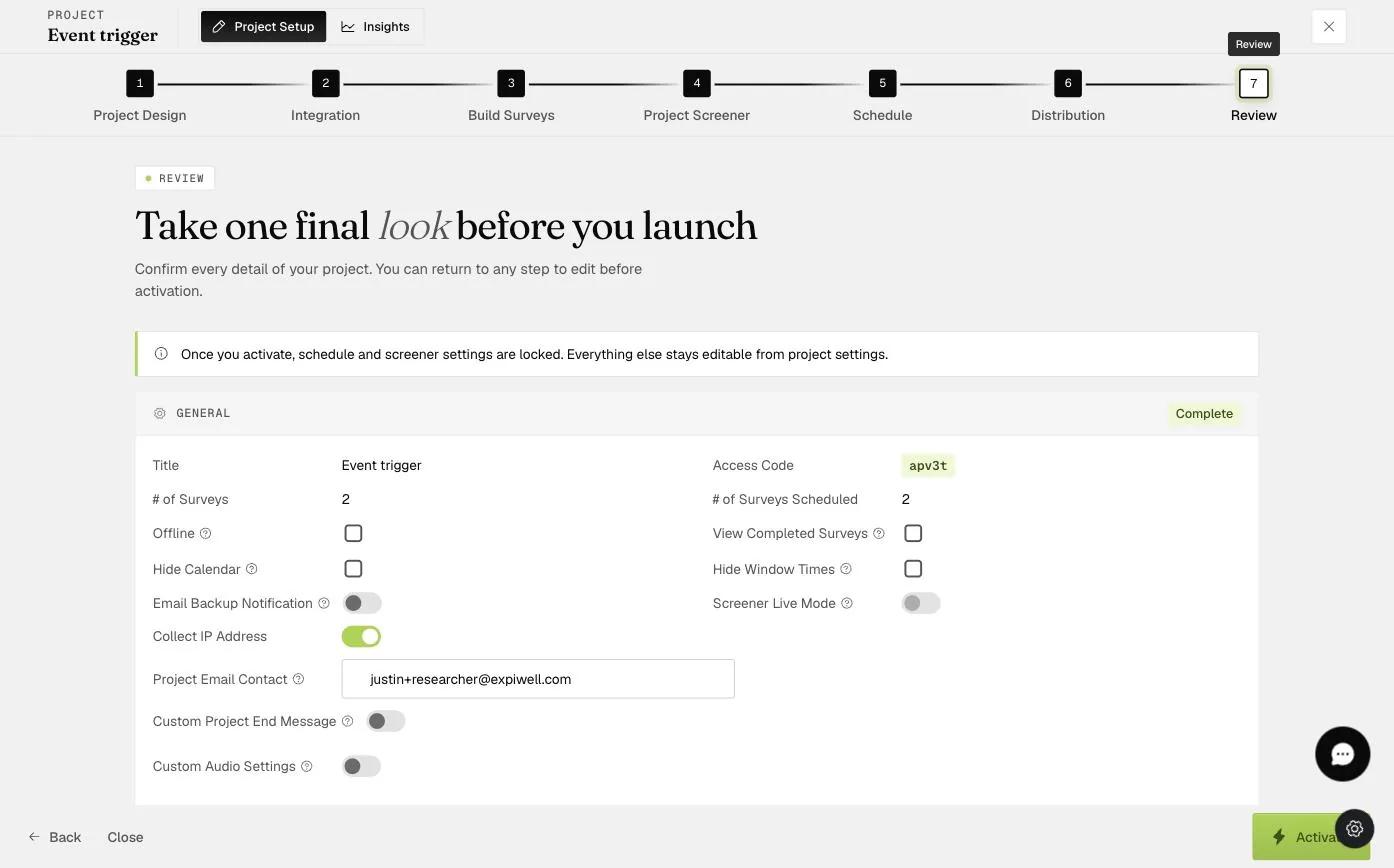
Ticking it asks you to confirm, and the dialog says plainly what you are agreeing to: participants will be able to complete surveys without an internet connection.
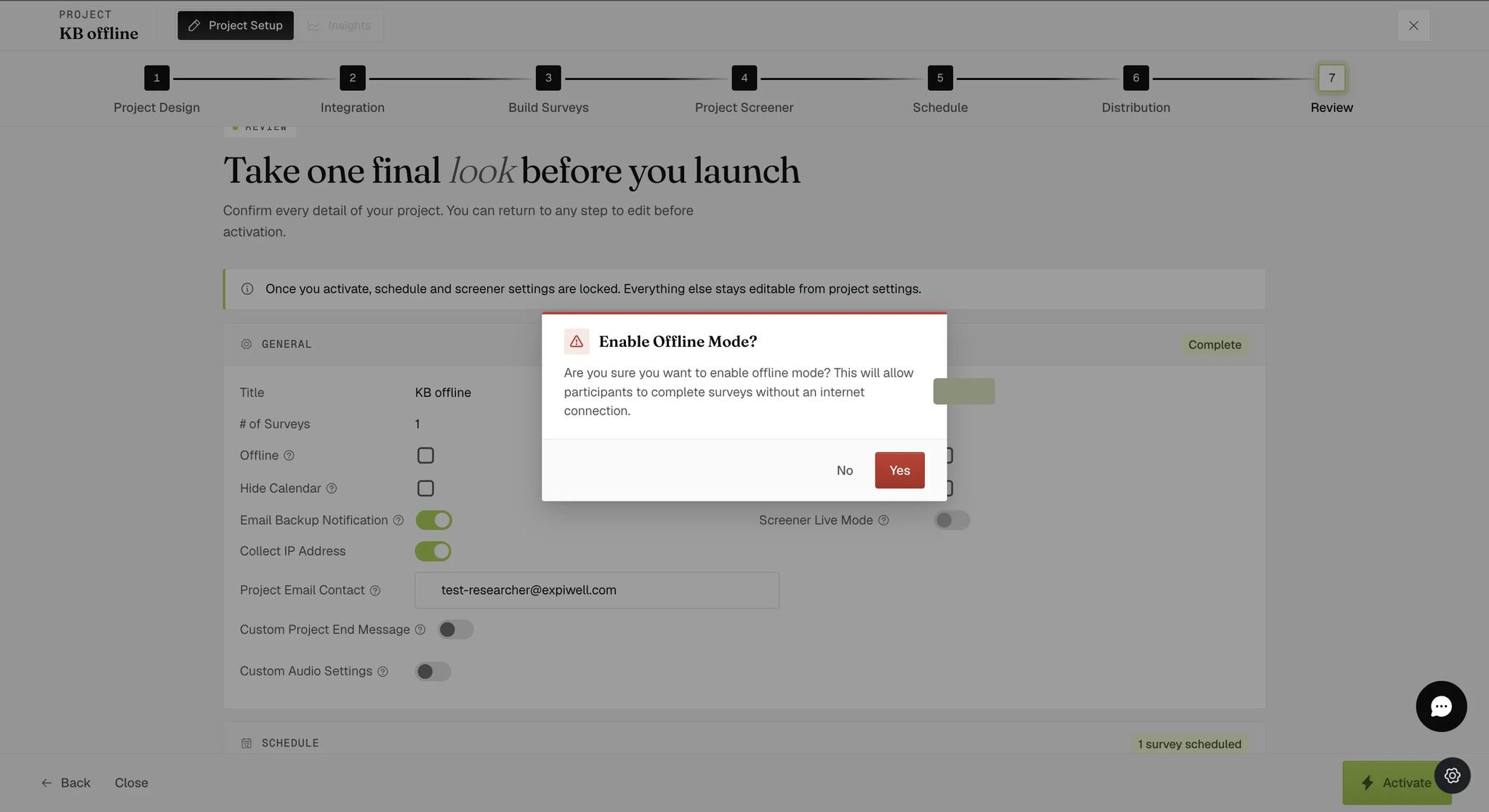
Compare the two screenshots above: Email Backup Notification is on in the first and off in the second. Nothing turned it off but ticking Offline — which is the mutual exclusion described below, visible in two frames.
Once Offline is enabled, participants are asked to choose before they join. The prompt is headed Add Offline Experience and offers Take Experience Offline, Take Experience Online, or Cancel.
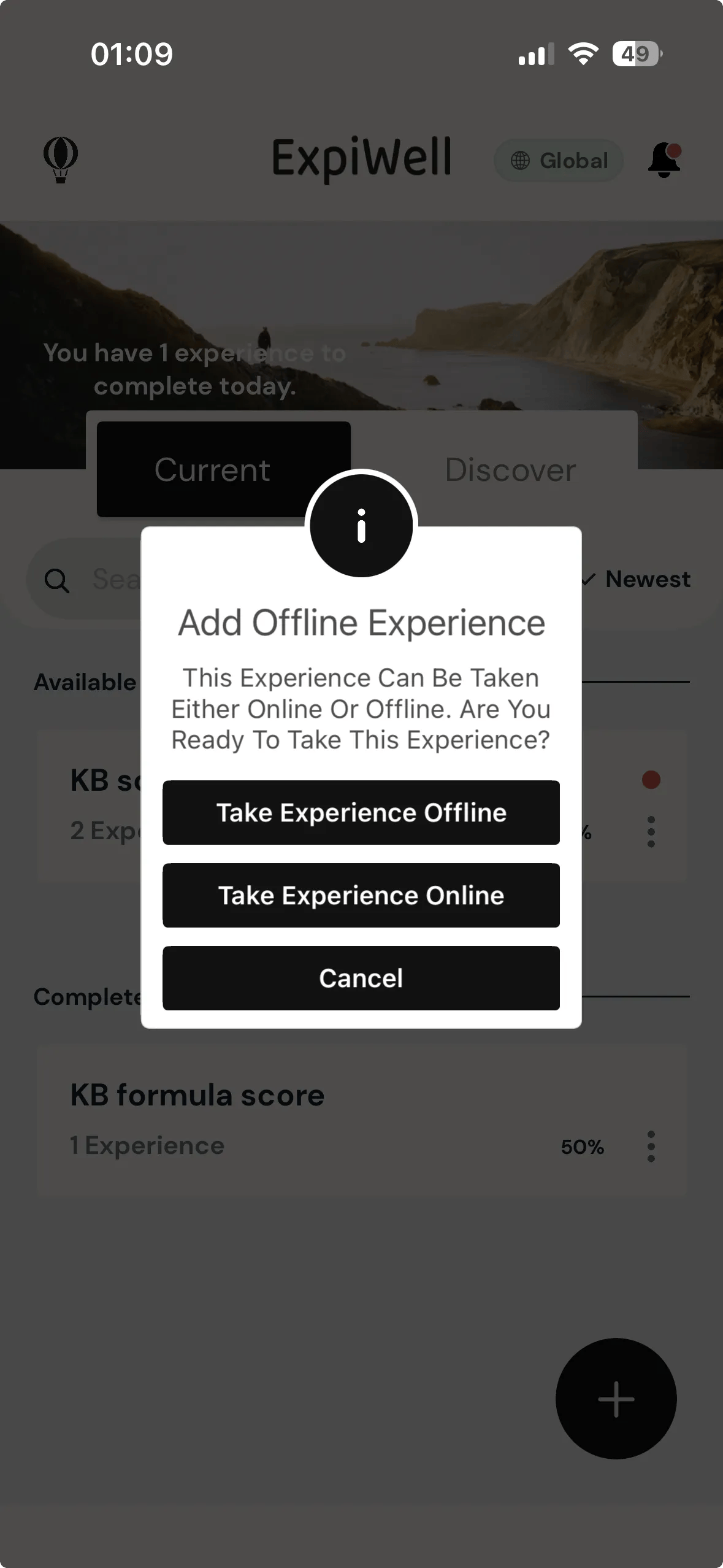
The choice is the participant's, not yours. Enabling Offline makes the option available; it does not put anybody into offline mode. A participant who taps Take Experience Online runs the study normally, and none of the caveats below apply to them.
Choosing Take Experience Offline does not download anything by itself. It records the choice, and that unlocks a Download Experience entry in the experience's own options — the three dots beside it on the experiences list. Downloading is what actually puts the surveys and their notification schedule onto the phone.
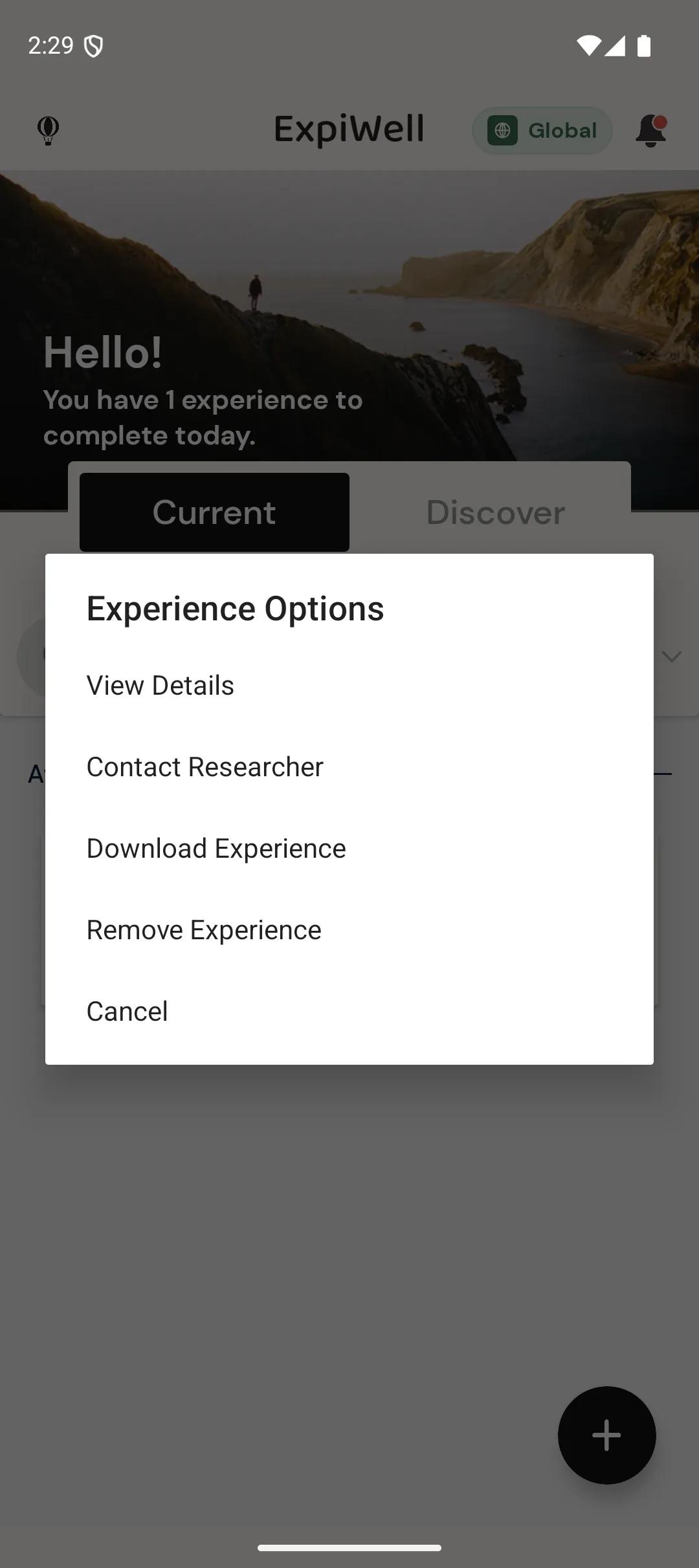
ExpiWell has long described Download Experience as Android only. Treat that as the official position, but test it on the devices your participants actually use rather than taking it on trust — the option sits in that menu rather than in the offline prompt, so it is easy to miss on any platform.
The entry is not on the list before the offline choice is made — the same menu then holds only View Details, Contact Researcher and Remove Experience. A participant who expects a download prompt immediately after choosing offline will not find one; they have to open the menu themselves.
Downloading is not the only thing that works without a connection, though. A participant who answers a survey while offline sees "Saved — we'll submit your survey automatically when you're back online", and the response is held on the device until it can be sent. That happens whether or not the experience was downloaded.
The Caveats, Which Are Significant
Handing the schedule to the phone is what makes this work offline, and it is also where every drawback comes from.
-
Notifications follow the phone's clock. Change the device time or time zone, or use a device that handles background scheduling poorly, and the timings go with it.
-
You cannot see them. Because the notifications never pass through ExpiWell, they do not appear in the participant's log — the usual way of checking whether a prompt was delivered. The log makes the difference visible: a participant who chose offline is marked Offline under Notif. Type and has no notification status at all, while an online participant on the same project shows a delivery percentage.
-
We cannot troubleshoot them. The causes are specific to each device and invisible from our side.
-
You give up backup email notifications. The two settings are mutually exclusive — switching Offline on turns Email Backup Notification off, and vice versa. It follows from the design: an offline participant's notifications never pass through FCM, so there is no failed dispatch for a backup email to catch.
Test this across real devices before you launch, and weight the test towards older phones and unusual settings. The feature earns its place when participants genuinely lack connectivity; outside that case the loss of monitoring is a high price.
If you have any questions, please reach out to help@expiwell.com