Fitbit integration
Google is retiring the Fitbit developer API in September 2026 and replacing it with the Google Health API. Fitbit collection in ExpiWell works normally until then, and work on a Google Health integration is in progress. Participants must already have moved their Fitbit account to a personal Google Account — university and workplace Google accounts are not supported. Read what this means for your study.
Fitbit Integration
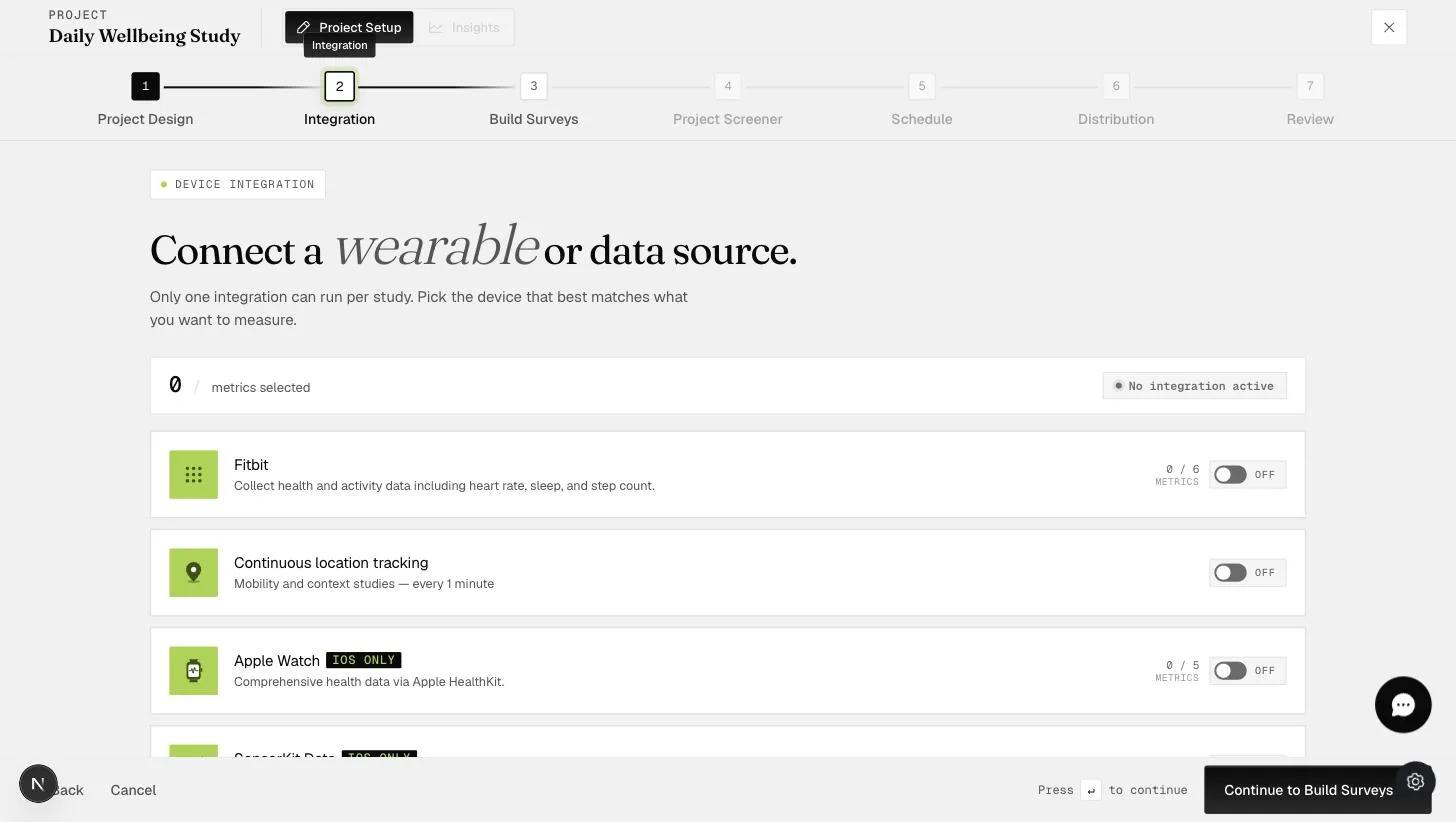
ExpiWell reads Fitbit data through Fitbit's API, using credentials the participant enters once. They do not need to keep the device paired to their phone over Bluetooth, and you do not need to touch the device at all — but the data has to reach Fitbit's servers first, which means the participant's own app has to sync.
Before you start
- One integration per study. The Integration step says it outright: Only one integration can run per study. Choosing Fitbit rules out Apple Watch, SensorKit and continuous location tracking.
- Six metrics in total, across the daily, intraday and activity groups. The
counter on the card reads
0 / 6. - A Google Account is required. Fitbit login now goes through Google, and it must be a personal account.
- The app has to be opened. Collection is triggered by app use; there is no passive background sync.
Daily metrics
Six are offered, each a 24-hour summary.
| Metric | What it gives you |
|---|---|
| Heart rate | Daily maximum and minimum heart rate zones, with calories burned in each |
| Sleep | The sleep log summary and time spent in each stage |
| Heart rate variability | RMSSD between heartbeats, for the day and for deep sleep |
| Breathing rate | Average breaths per minute during sleep |
| Temperature (core) | The temperature logged for the day |
| Active zone time | Time spent in each heart-pumping activity zone |
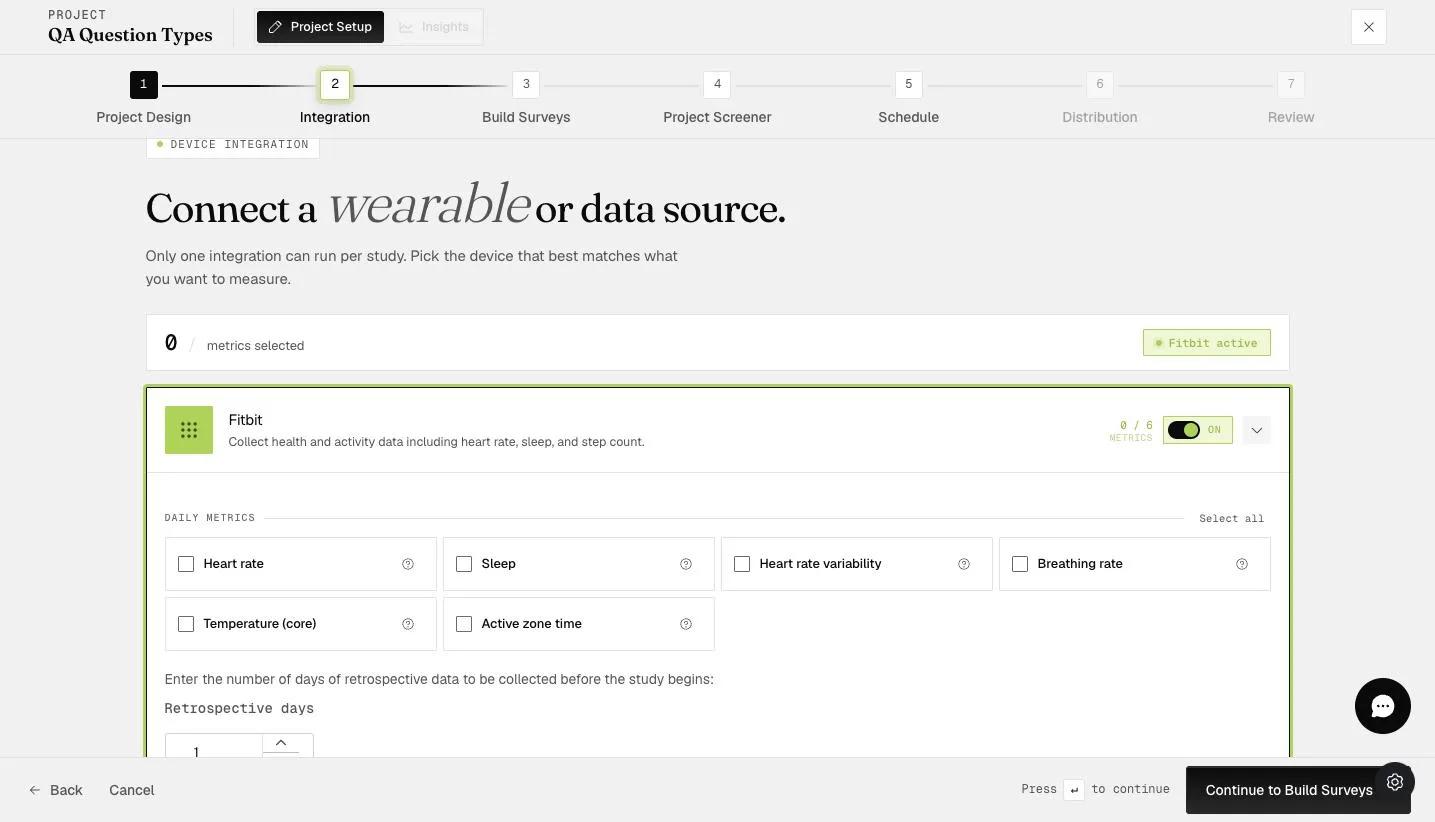
Retrospective days collects history the participant's Fitbit already holds, up to 30 days back from when they join. Anything Fitbit no longer stores cannot be recovered.
Intraday and activity metrics
Below the daily set, the card has two more groups that break the day into intervals rather than summarizing it.
Intraday metrics — Heart rate · Active zone minutes · SpO2 · HRV · Breathing rate
Activity — Steps · Calories · Distance · Floors · Elevation
Each group has its own Select all, and all three groups draw on the same
budget of six: the counter at the top of the card reads 6 / 6 METRICS once
you have picked six, wherever they came from. At that point the remaining
checkboxes gray out.
Intraday interval sits at the bottom and is a single setting for the whole card — 5 minutes or 15 minutes — not something you choose per metric.
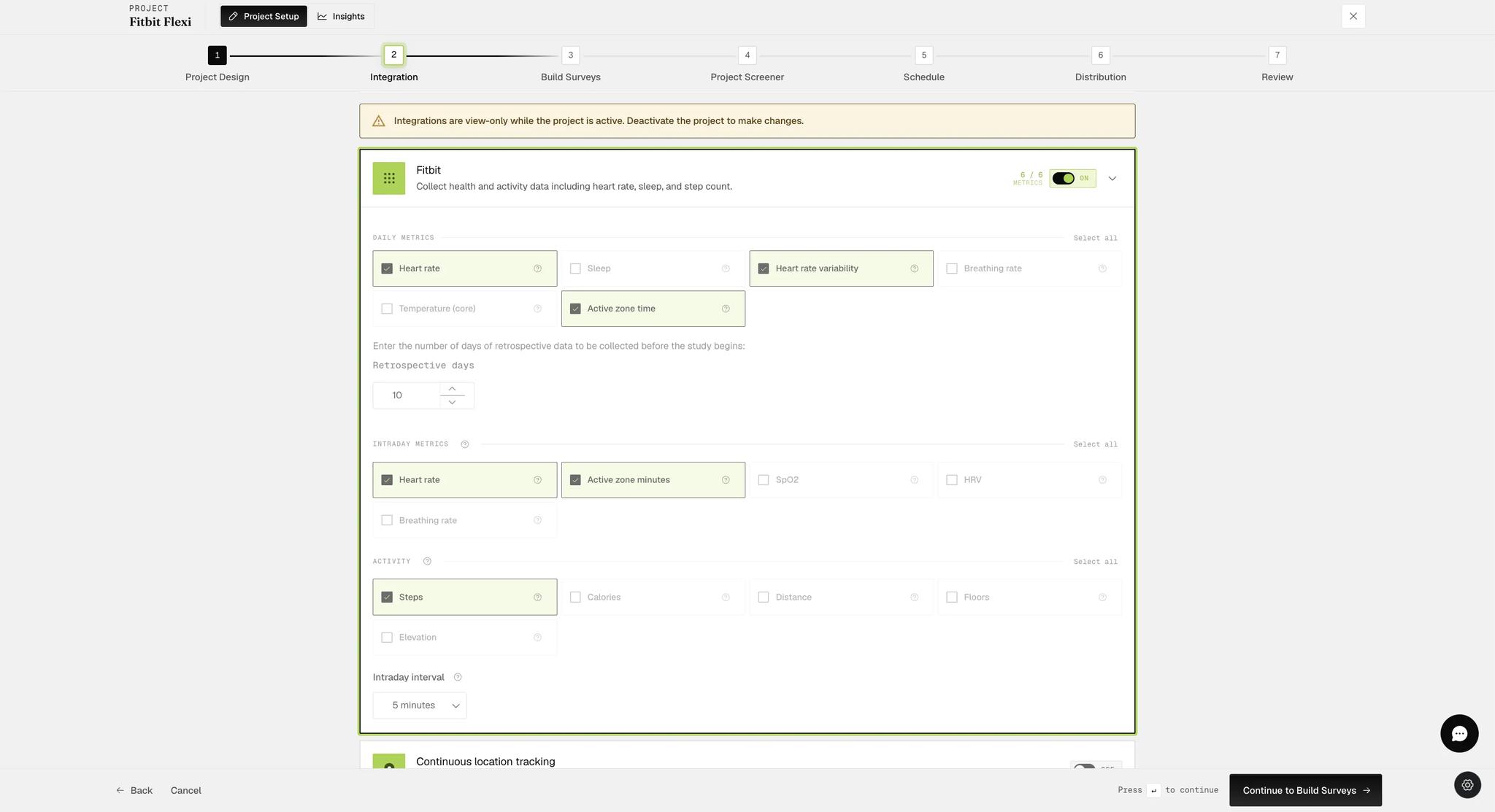
You cannot change any of this while the project is active. The Integration step shows a banner — Integrations are view-only while the project is active. Deactivate the project to make changes. Decide your metrics before you launch, because changing your mind later means taking the study down.
When data is collected
One rule covers most of it: data is pulled when the participant opens the app, once a day, for the period since the last pull.
- Day one — the retrospective window for daily metrics, or the past 24 hours for intraday.
- Every day after — the previous 24 hours, collected the first time they open the app that day.
- The final day — twice. Once when they first open the app, and again when they reach the last scheduled survey, which captures that day up to that timeslot.
Missing a survey does not lose the data, but never opening the app does. Skip days 2 and 3 and open the app on day 4, and days 2, 3 and 4 all arrive together. Never open it between day 1 and the end, and days 2 onwards are gone — Fitbit's API is only called while the app is in use.
Schedule your last survey late enough. Collection on the final day stops at the last scheduled timeslot. If you need data up to 5pm, the final survey has to be at 5pm or later.
Retrospective intraday data
This one is not in project setup. It lives under Insights → Wearables → Fitbit Intraday, and nothing arrives until you ask for it — the page says so: Data must be fetched from Fitbit before downloading.
It is a table, one row per participant, and each row carries its own Start Date, End Date and Fetch Data button. Alongside them:
- Status — where the participant is in the project
- Data Download Availability — whether anything can be fetched for them
- Project Start Date — when they joined, which bounds what is worth asking for
A participant only needs to have joined. They do not need to have answered anything.
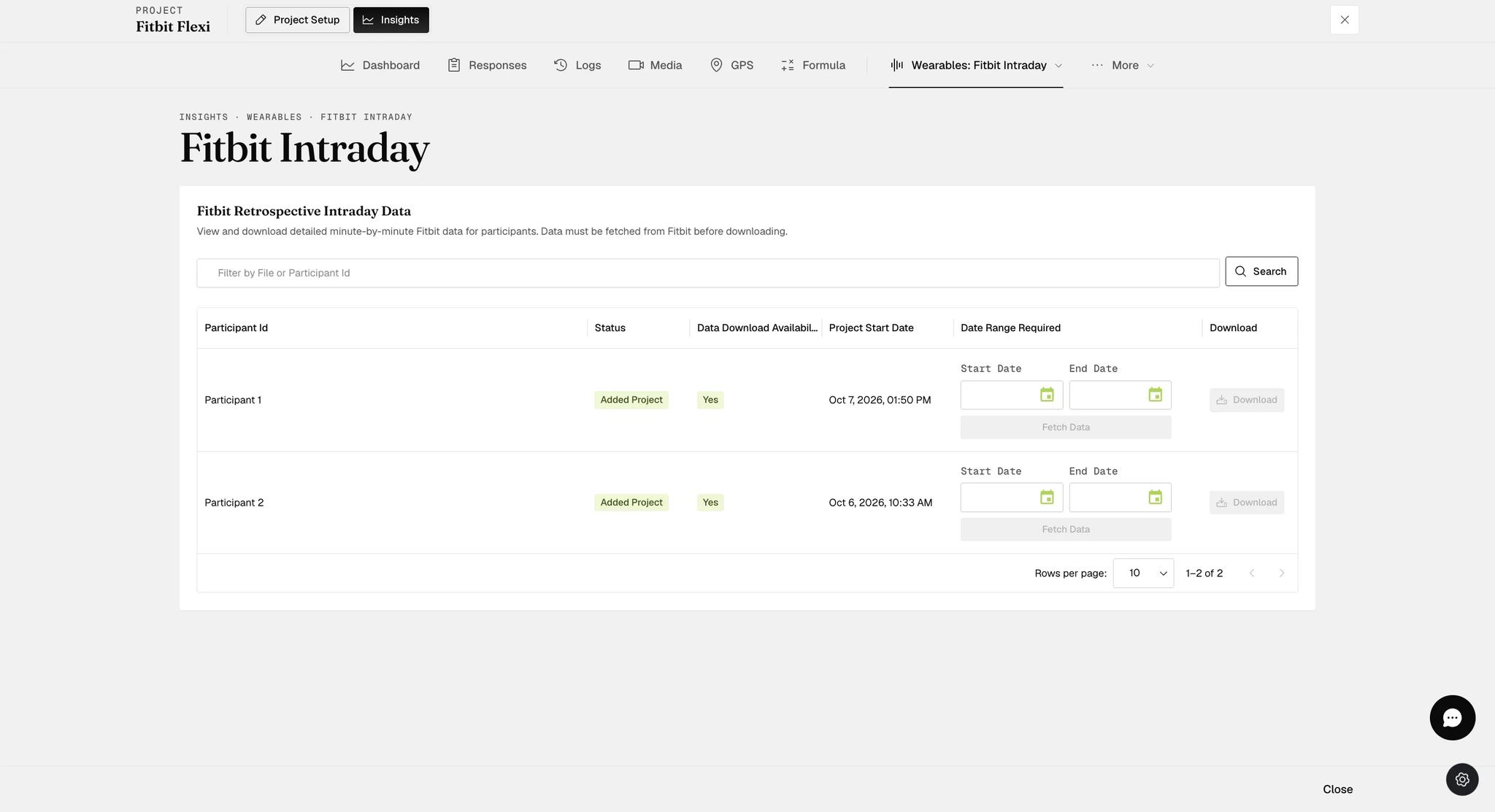
One month per participant, per hour. Set a wider range and the page says so in red — Due to Fitbit API limits, you can only fetch and download a maximum of 1 month of Intraday data per participant per hour — and Fetch Data stays disabled. You are stopped before the request goes out rather than after it fails, so narrow the dates and try again.
Pick a start date and end date on that participant's row, then Fetch Data. Both buttons stay grayed out until the range is set.
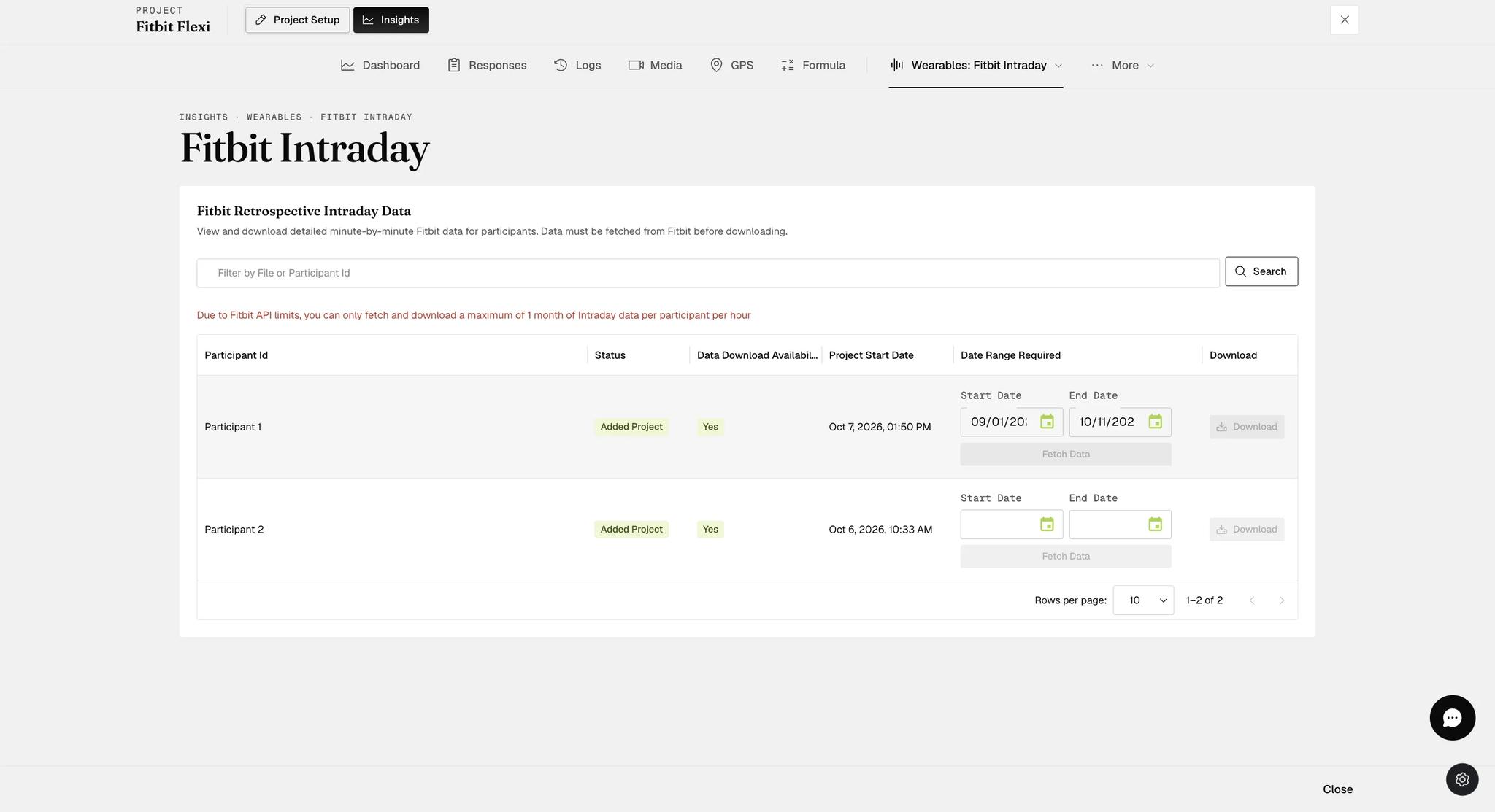
Fetching runs in the background — the button reads Fetching… and a toast
confirms it has started. When it finishes, Download turns on and the row
records what you asked for: Fetched Data from 2026-10-10 to 2026-10-11.
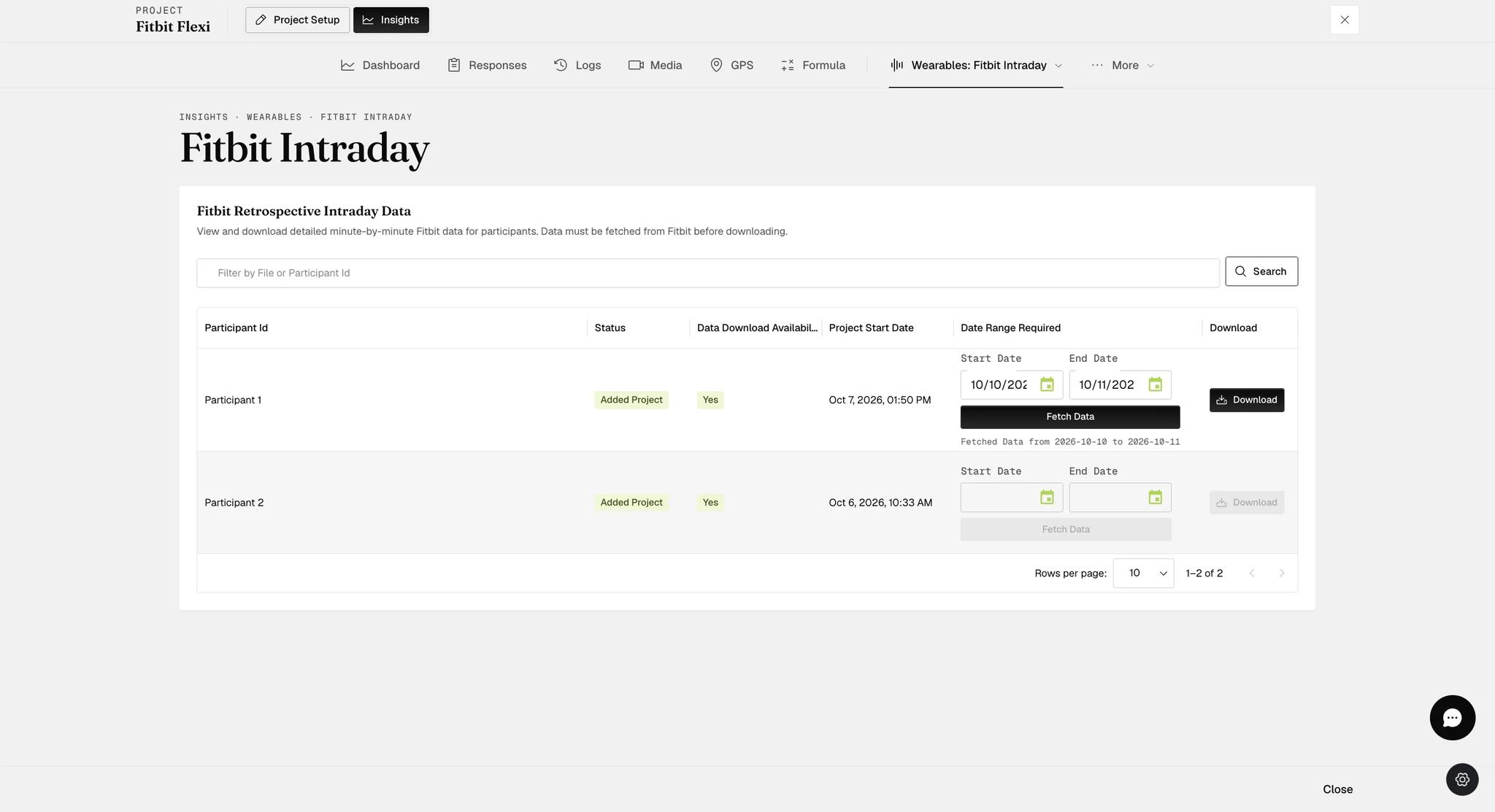
That line shows the most recent fetch, not everything you have ever fetched. Data accumulates on the ExpiWell server rather than replacing what came before — fetch 1–15 March, then 1–25 April, and the download gives you both periods collated into one file per parameter — but the row only ever names the last range, so keep your own note of what you have pulled.
What participants do
They enter the access code and enrol as normal. Starting the experience asks for a start date first, and only then does a Start Experience dialog warn them what the project needs: This project requires Fitbit data sharing and login. Do you wish to continue?
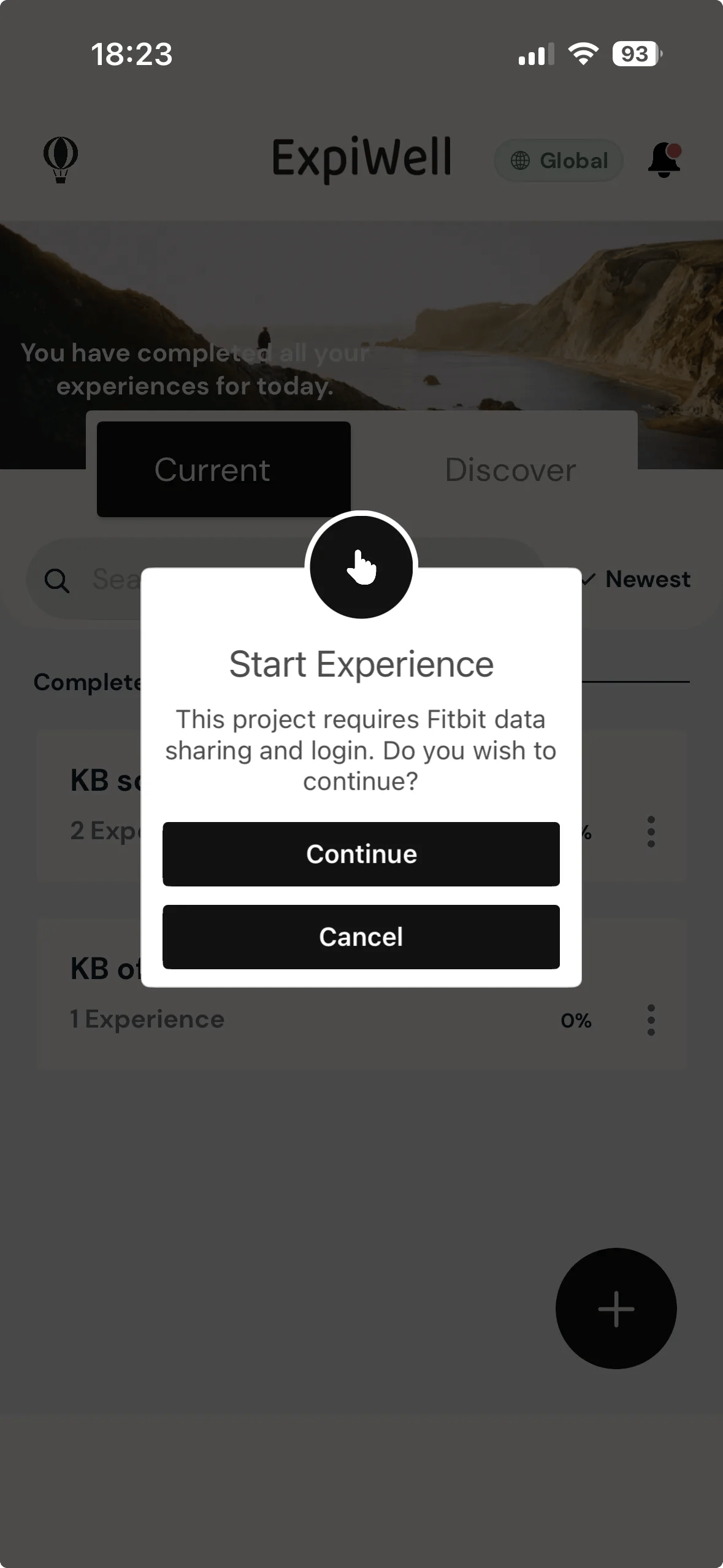
Continuing takes them to Fitbit's login, which now runs through Google — a
Choose an account screen on accounts.google.com, listing whichever Google
accounts the phone already knows plus Use another account.
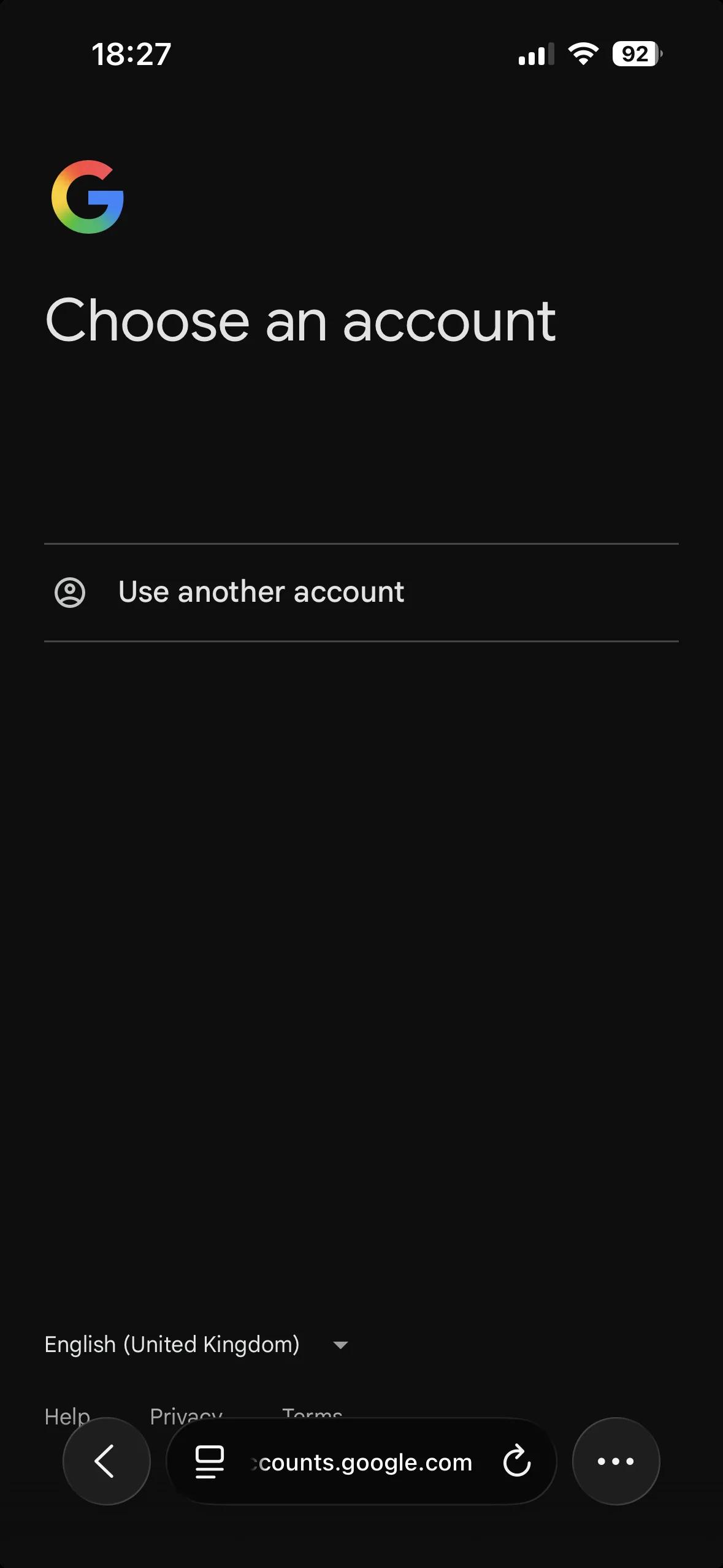
It must be the Google account the Fitbit account was moved to. Picking a Google account with no Fitbit account behind it does not fail with a useful message — it returns to the login screen.
Fitbit then asks which data types to share, on a screen served by fitbit.com:
breathing rate · weight · activity and exercise · heart rate · profile ·
location and GPS · sleep · food and water logs · temperature · Fitbit devices
and settings · oxygen saturation (SpO2) · friends — with an Allow All at the
top. Allow stays grayed out until at least one is ticked.
Note the duration above the list: access is granted for 1 year, and the period is a control, not a label.
Every type the study needs has to be ticked. Fitbit says as much — If you allow only some of this data, ExpiWell may not function as intended — and anything left off simply produces no data, with no warning on the researcher side.
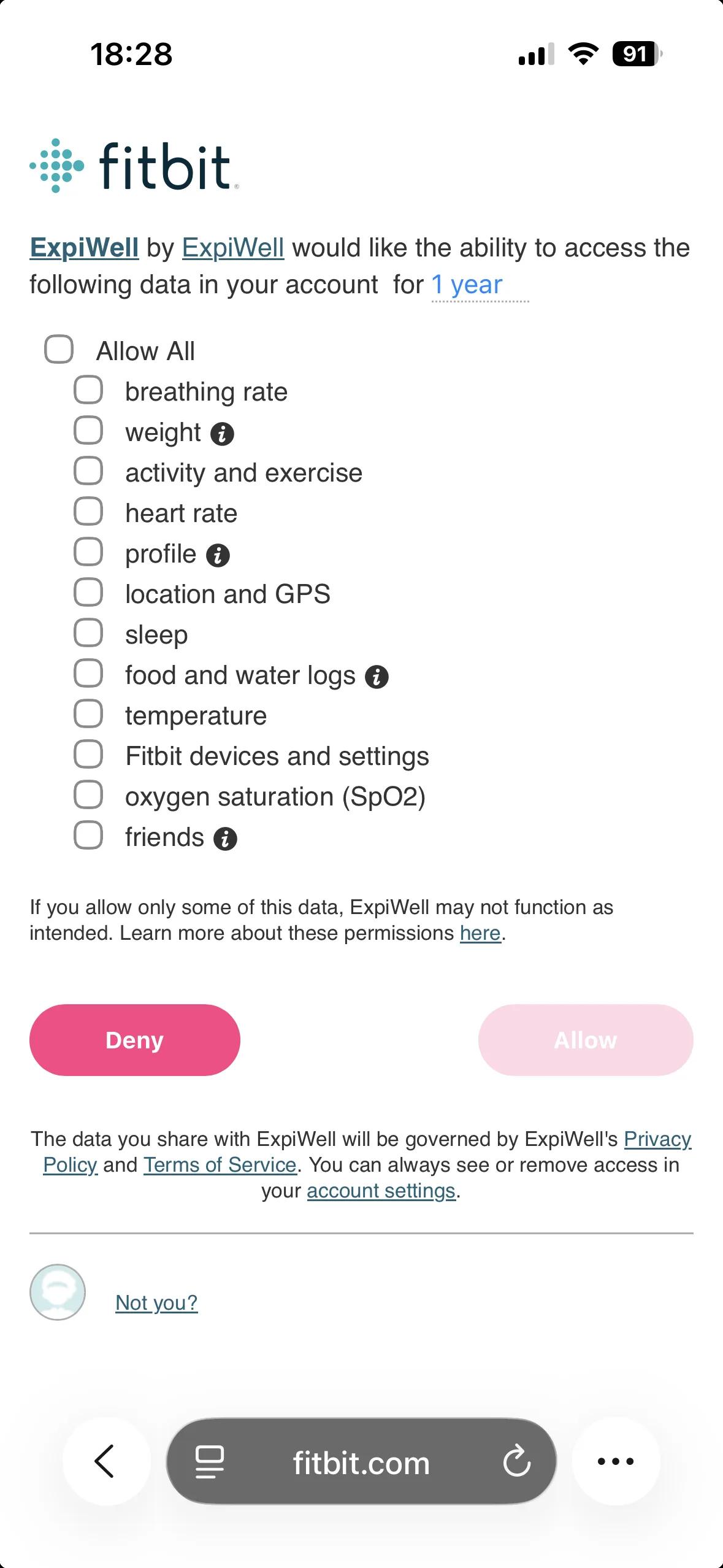
The Fitbit list and your metric list are not the same list. Fitbit grants by category — "activity and exercise" covers steps, distance, floors and calories. Match them to the six metrics you chose, rather than looking for your metric names here.
Sync the Fitbit app before opening ExpiWell. ExpiWell reads from Fitbit's servers, not from the device. Data that has not reached Fitbit yet cannot be fetched, however recently it was recorded.
Participants should also wear the device for a full day including overnight — sleep-dependent metrics need it.
Downloading the data
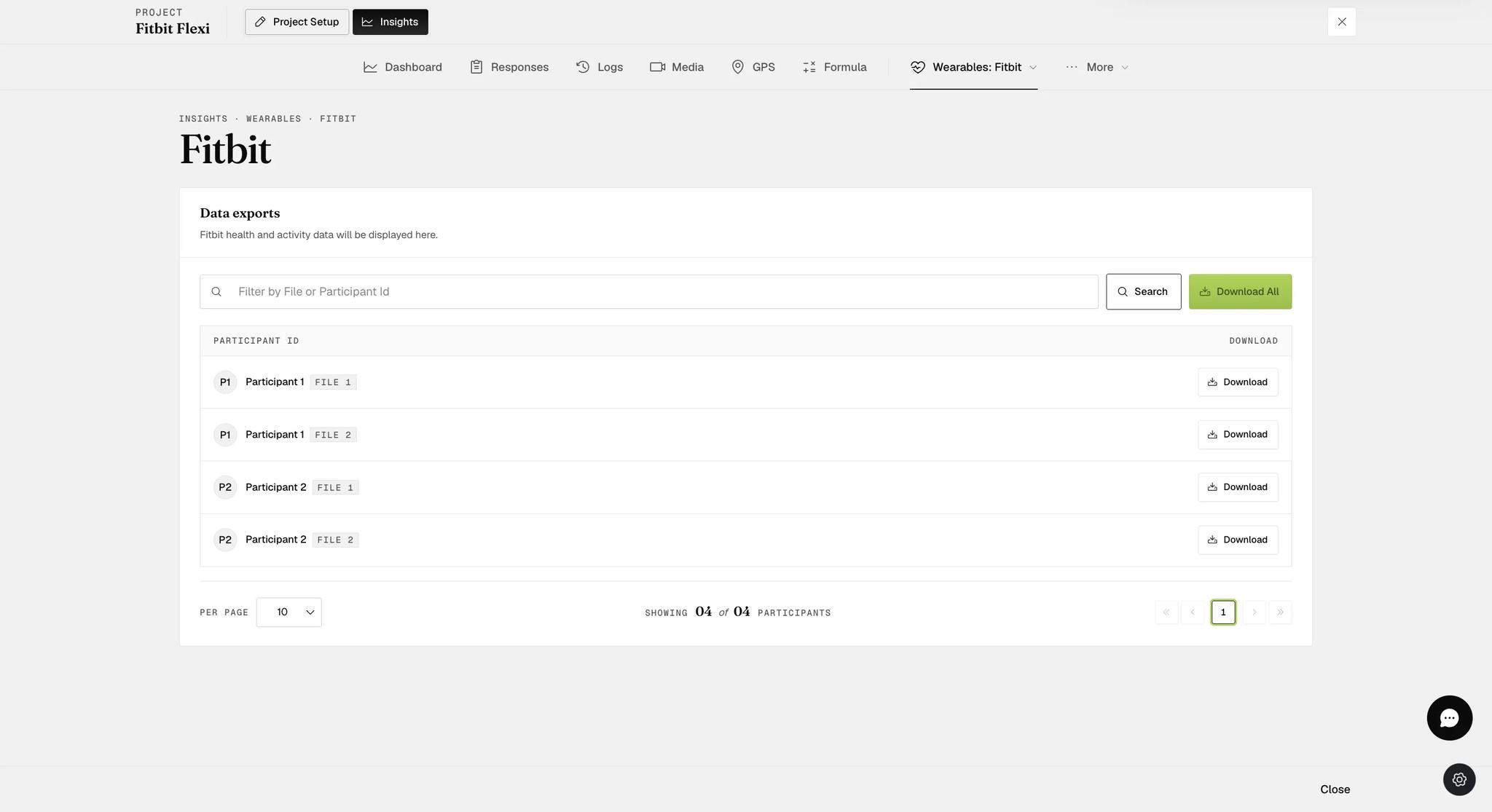
Insights → Wearables → Fitbit, then Download per participant or Download All for everyone.
Each selected metric arrives as its own file, named for the participant and the
metric. Six metrics means six files — …_heartRate_timeSeries.csv,
…_heartRate_variability.csv, …_activeZone_timeSeries.csv,
…_activitySteps.csv, …_intradayAZM.csv, …_intradayHeartRate.csv.
Two downloads, two different things. This page gives you everything the project collects, daily and intraday together, for the whole study. The Fitbit Intraday page gives you only the intraday and activity metrics, for a date range you choose and fetch. Go to the Fitbit page for the study's data; go to Fitbit Intraday to reach back before a participant joined.
Intraday and activity metrics arrive as one file each, named for the
participant and the metric — Participant 1_activitySteps.csv,
Participant 1_intradayAZM.csv, Participant 1_intradayHeartRate.csv. Each is
three columns: Date, Time, Value, with one row per interval.
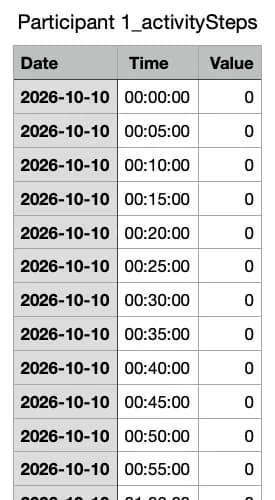
Rows of zeros are normal, not missing data. Every interval gets a row
whether or not anything happened, so a sleeping participant produces hours of
0. An absent row means no data at all; a 0 means the device was reporting
and the value was nothing.
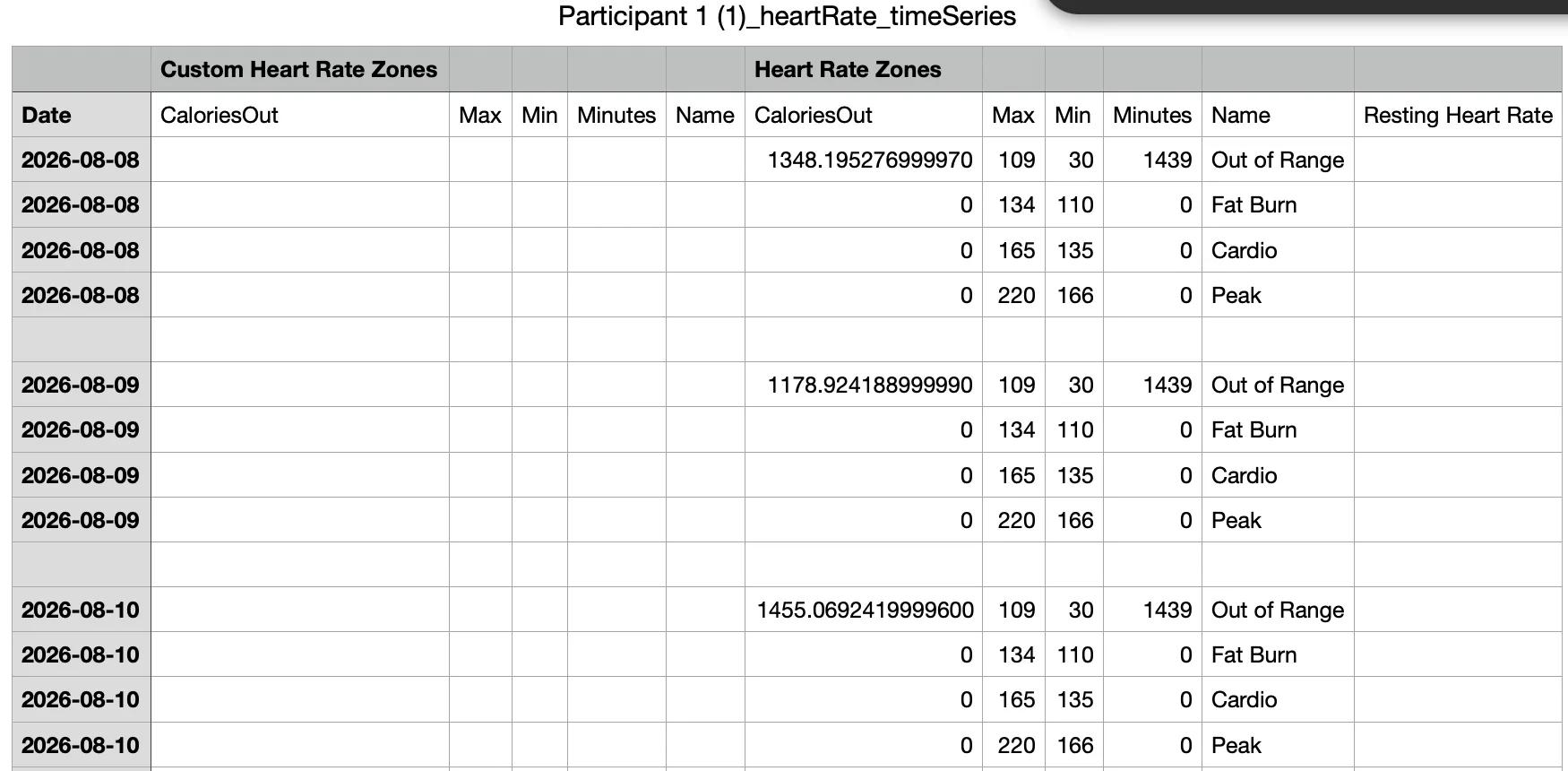
Shapes differ by metric. A daily file is one row per zone per day — Out of Range, Fat Burn, Cardio, Peak — each with its calorie total, its bounds and the minutes spent in it, alongside columns for custom zones and resting heart rate.
If a participant rejoins
Nothing is lost. Each enrolment gets its own export, and they appear as separate rows under the same name with a FILE 1, FILE 2 badge — the highest number being the most recent. You can see this in the list above: Participant 1 and Participant 2 each have two files.
Download them separately, or take the lot with Download All.
Common questions
Can data be collected even if they ignore the surveys? Yes. Collection depends on the app being opened, not on surveys being answered. They still have to sync Fitbit first.
Does battery-saving mode break it? No. Data is read from Fitbit's API, so once it has synced, how the phone behaves afterwards does not matter.
Does collection stop when they finish all their surveys? Yes — the project is marked complete.
Can it run passively, without the app? No. The Fitbit APIs used here require app interaction.
What if they log out of Fitbit? They are prompted to reconnect the next time they open ExpiWell.
Which metrics need sleep? HRV, Breathing Rate, Sleep, Heart Rate Time Series and SpO2 all depend on Fitbit detecting at least three hours of sleep. A night without the device leaves them empty, and the same limit is why HRV cannot be collected during the working day. Google's own explanation of sleep data covers the detail.
How does Fitbit calculate steps, distance and calories? Google documents activity data, active zone minutes and heart rate, including the known sources of discrepancy.
Do participants need Fitbit Premium? No.
This walkthrough was recorded in the earlier ExpiWell interface — an updated video for the new dashboard is coming.