Duplicating projects & editing project name
A Guide to Duplicating Existing Projects & Editing Project Name
You can duplicate an existing project — along with its surveys, schedules, and settings — for piloting or distributing to a different participant group. Project names can also be edited at any time.
Duplicating a Project
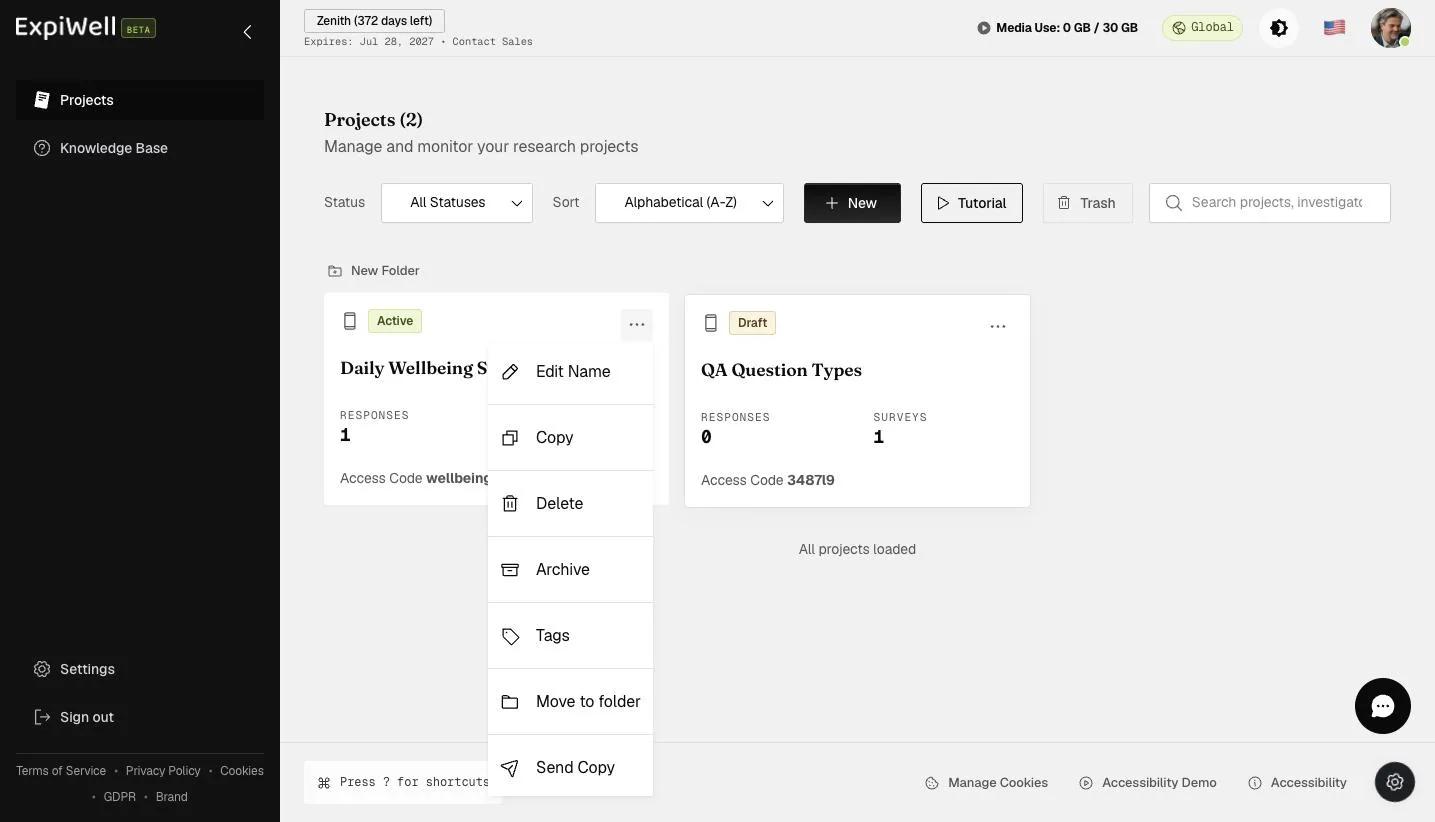
To duplicate an existing project, go to the main projects dashboard, click the three-dot menu on the project card you would like to duplicate, and select 'Copy'.
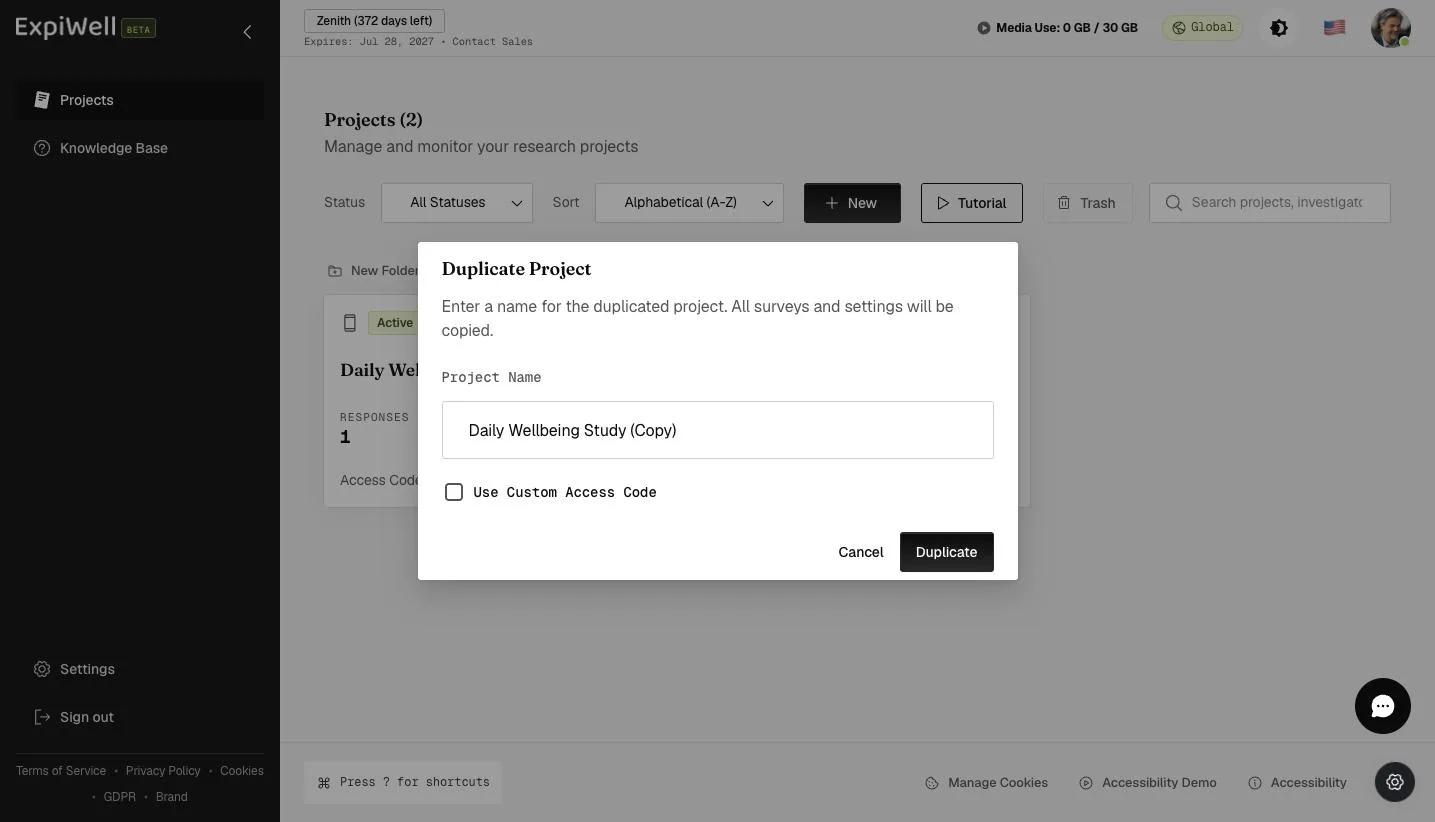
A popup will allow you to edit the name of the duplicated project. You can also tick Use Custom Access Code to set your own code instead of letting the system generate one. Provide a name and click Duplicate.
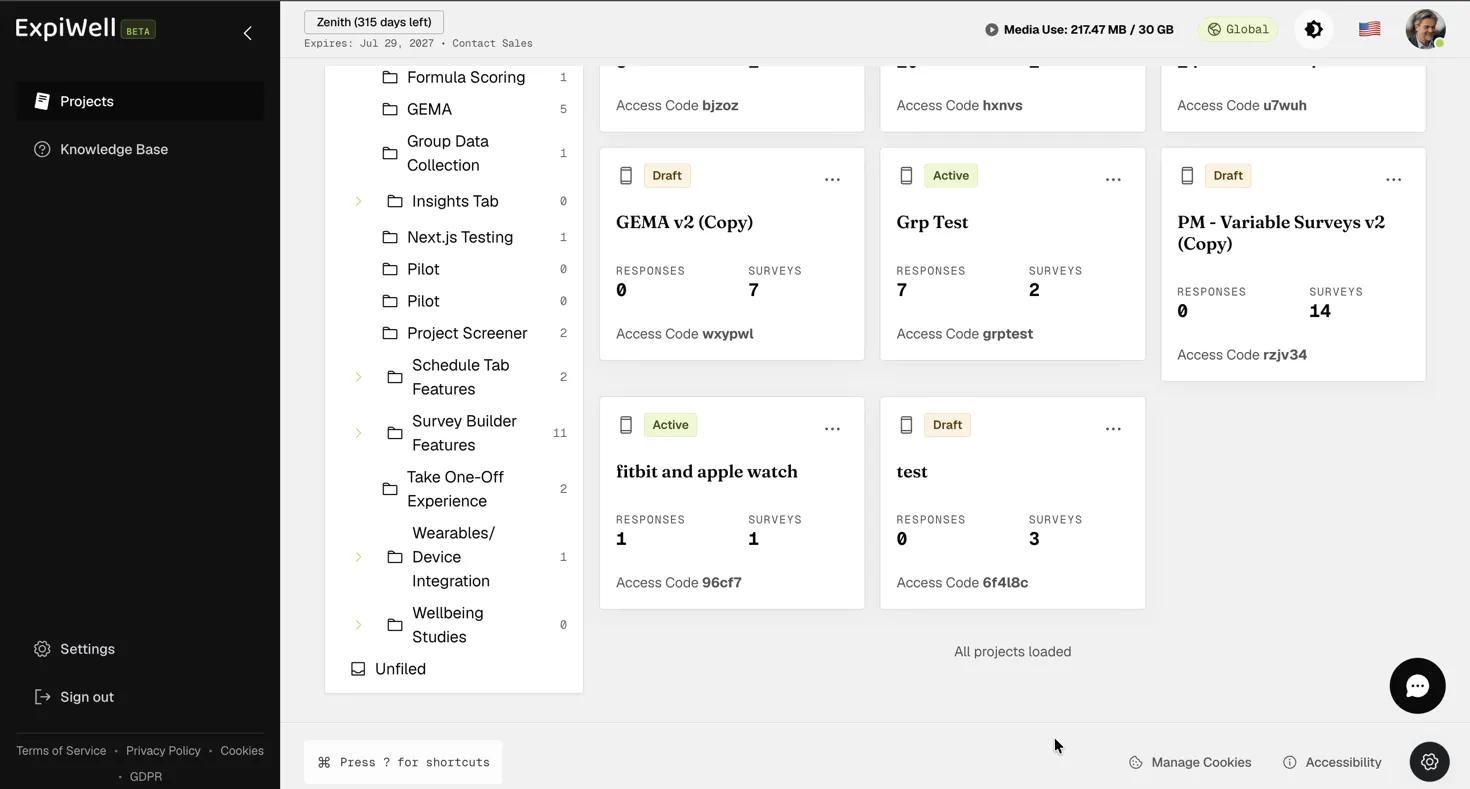
Review the duplicated project setup and make the changes according to your research needs.
Editing Project Name
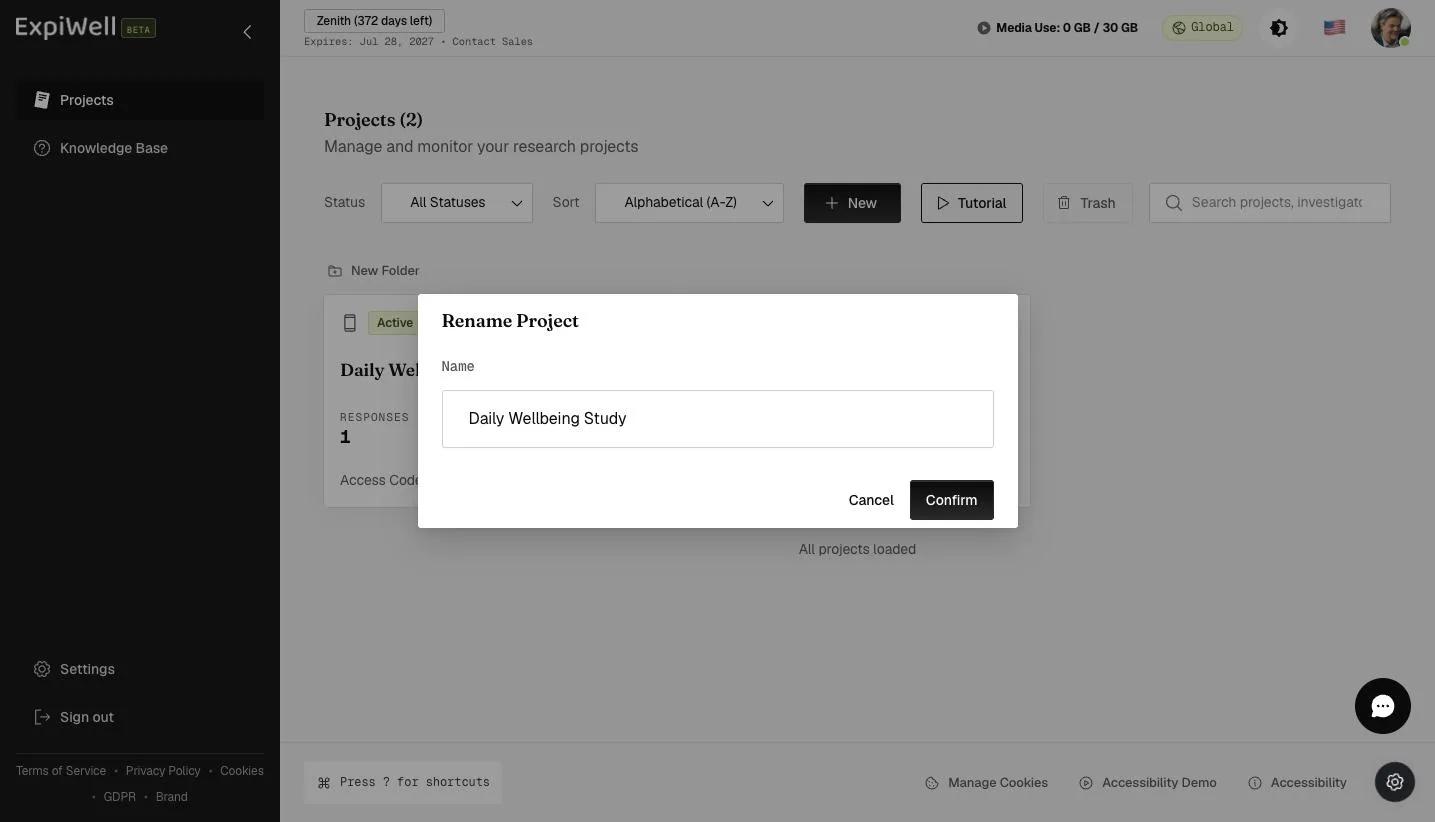
To edit an existing project name, go to the main projects dashboard, click the three-dot menu on the project card you would like to edit, and select 'Edit Name'.
A popup will appear, allowing you to edit the project's name as needed. Click 'Confirm' to update the project name on the main projects dashboard. Note that the project's access code will remain unchanged, even after the name is updated.