Personalize timings & retake missed surveys (Beta)
What the Personalizer Does
Some EMA and ESM designs need to bend to the participant rather than the other way round. The Personalizer lets you hand over a controlled amount of that flexibility: participants can shift a survey within its day, move it to another day, or go back and retake one.
You choose which surveys this applies to and how far the flexibility goes — it is not all-or-nothing.
The Personalizer is in beta. Test it against your own project before you launch with it.
It is also not included on every plan. Where a subscription does not cover it, ExpiWell says so rather than showing the tab — "This feature is not available on your current plan." Contact help@expiwell.com if you expect to have it and do not.
Step 1: Choose the Surveys to Personalize
Build your survey schedule first — the Personalizer works on windows that already exist, so there is nothing to personalize until they do.
Then open the Personalizer tab, beside Scheduler. Until you create something it sits empty, offering + Create Your First Set.
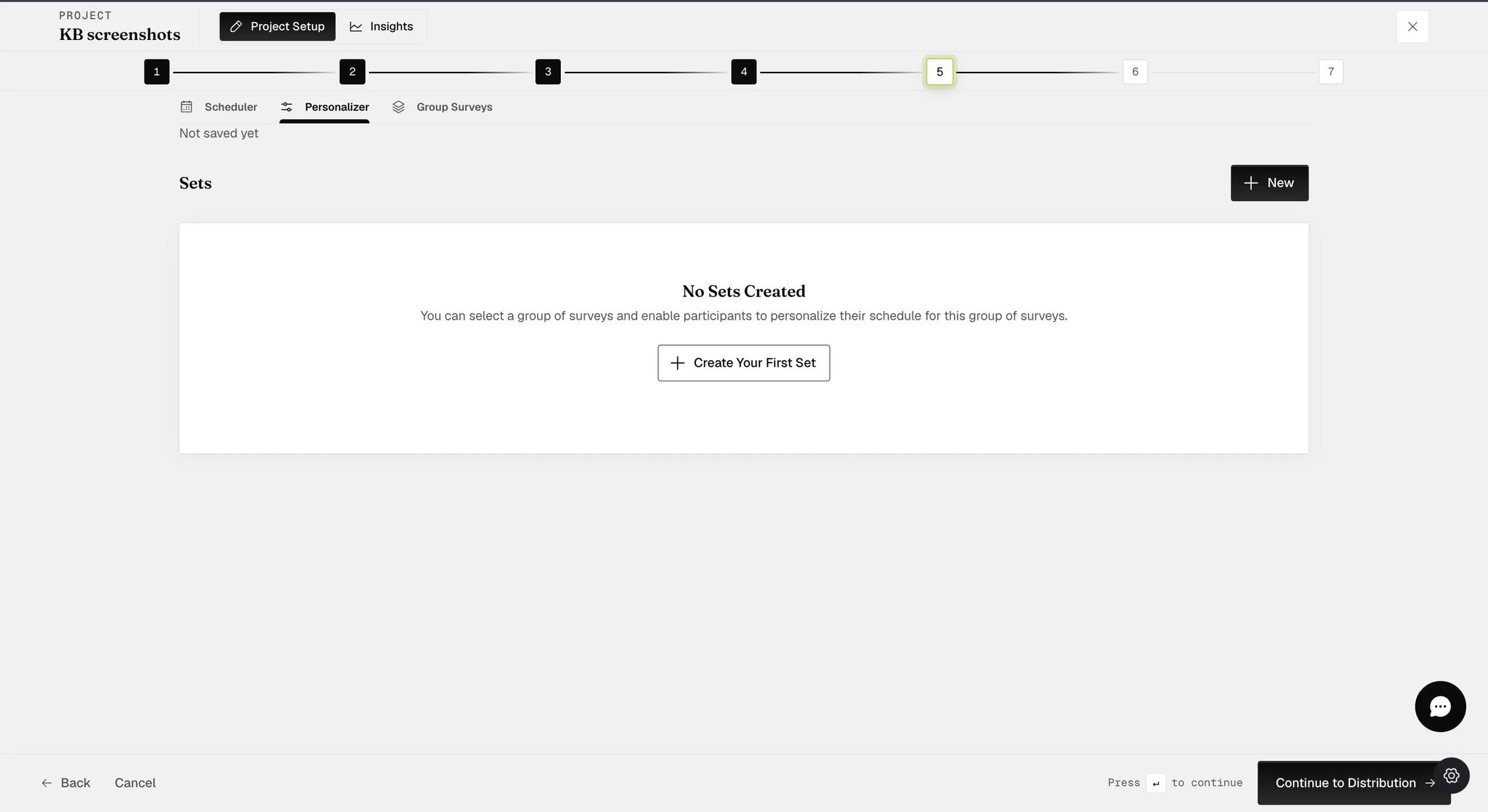
A set is a group of survey windows you are opening up together. Click + New — or + Create Your First Set — to make one.
You choose which windows go in it, because you will not always want participants free to move everything.
-
Set Title — name the set. It arrives as "Untitled Set".
-
Select Windows — click the survey windows on the right to add them. Each one collects under Selected Windows with its day, survey name and times.
-
Reschedule Multiple Windows (optional) — switch this on when the set holds more than one window of the same survey.
-
Confirm with the check icon when you are done.
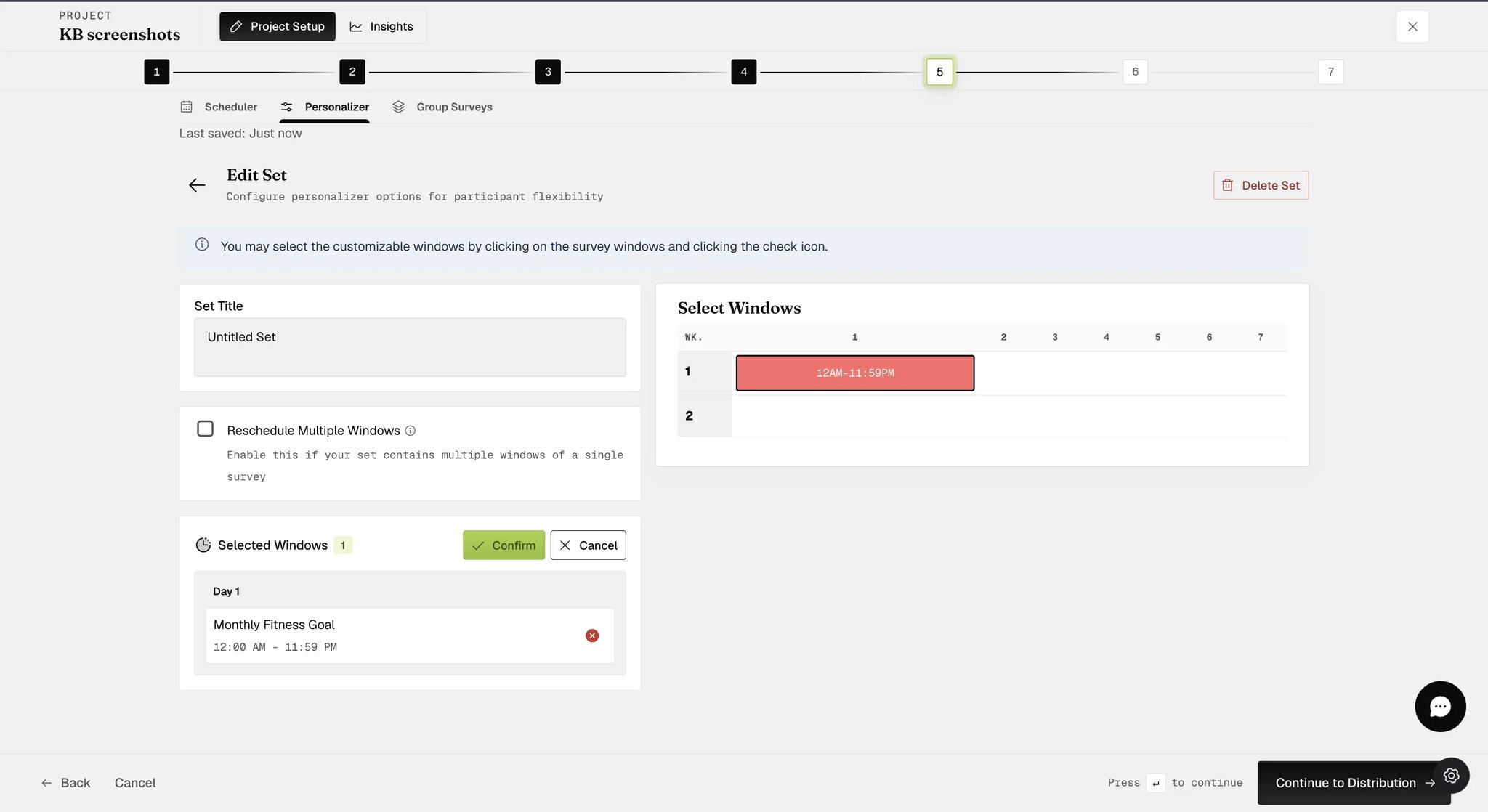
Step 2: Choose What Participants Can Change
Confirm the set and Personalization Options appears beside it, holding three independent switches. Use any combination of them.
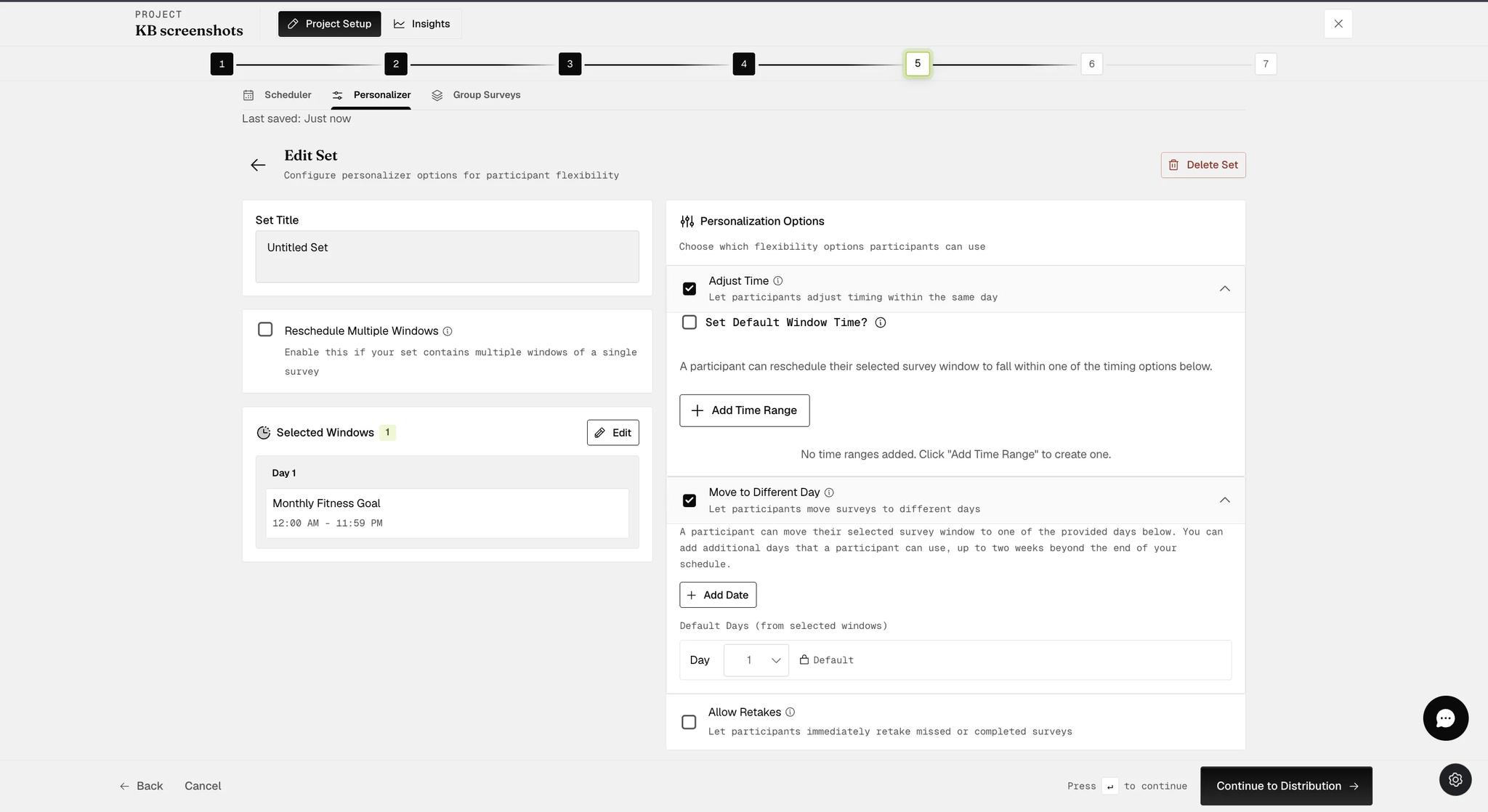
Adjust Time
This lets participants move a survey within its own day. It earns its place when routines differ: a 6am prompt suits one participant and lands in the middle of another's sleep if they work shifts.
You decide the bounds they can move inside. Click + Add Time Range and set a From and To time — a participant can then reschedule that window to any point between them. Add more than one range if the day has separate acceptable periods.
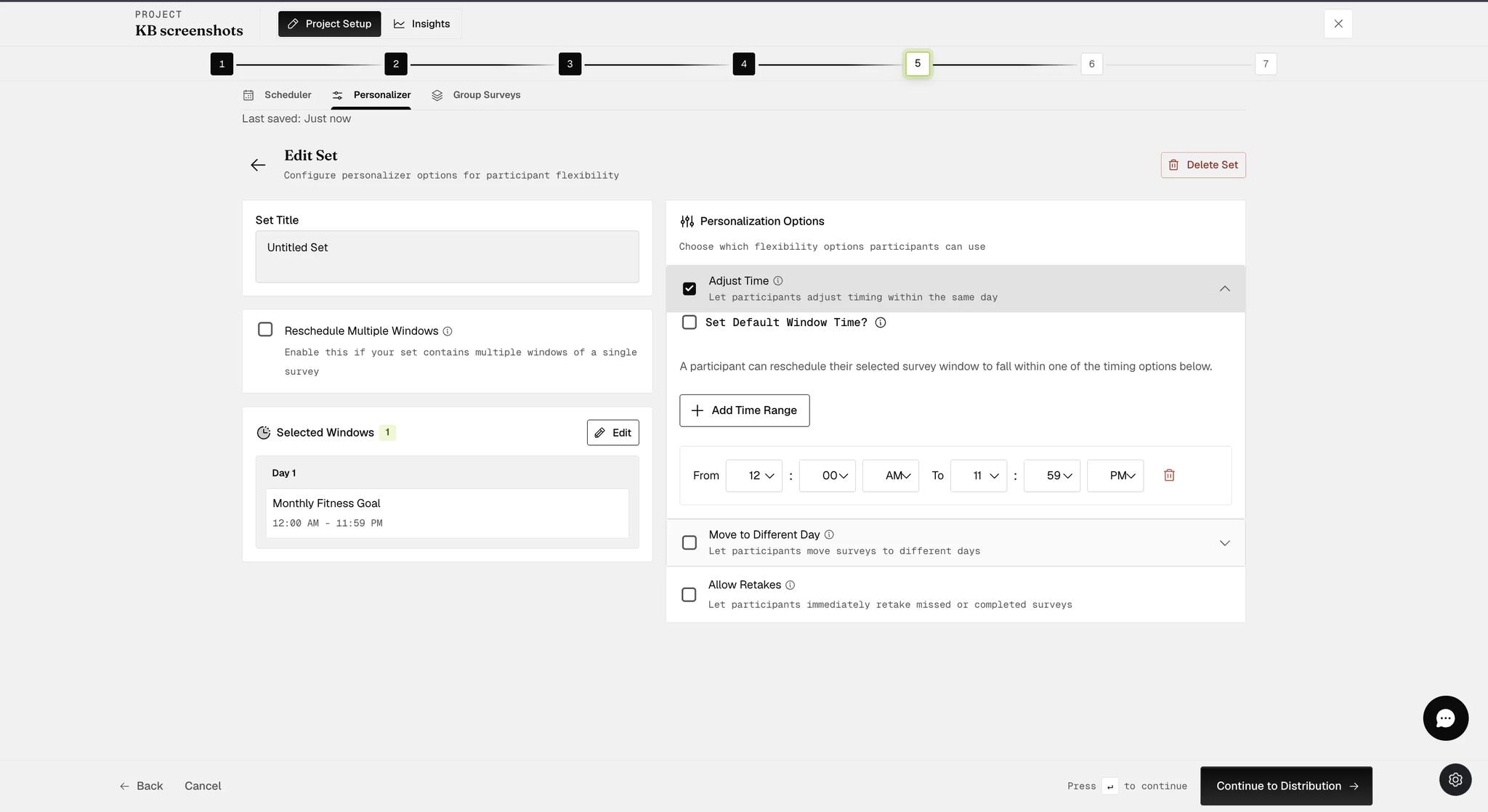
Set Default Window Time? sits above the ranges. Switching it on lets a participant adjust their window even when the original one is too restrictive to allow it, and gives you a Default Window (minutes) figure to use in that case.
Move to Different Day
This lets participants move a survey to a different day altogether. Its time window travels with it unchanged — this option moves the day, not the hours. The days they may choose are listed in two groups:
-
Default Days (from selected windows) — the days your set already covers. These are filled in for you and one is marked Default.
-
Additional Days — anything further you want to offer. Click + Add Date and pick the day; click it again for each extra one.
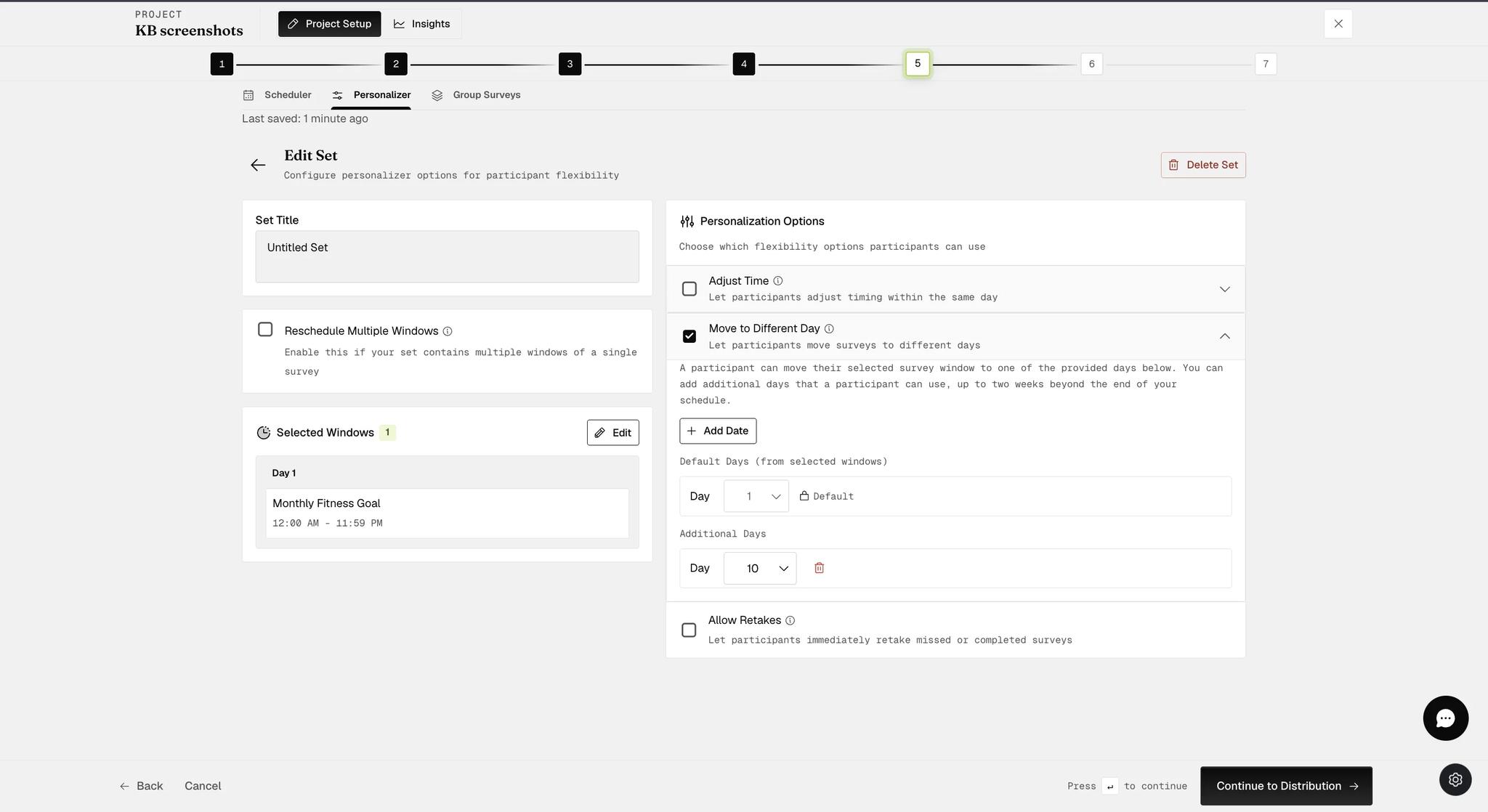
Additional days can run up to two weeks beyond the end of your schedule, and no further. If your design needs a longer tail than that, it has to come from the schedule itself rather than from the Personalizer.
Allow Retakes
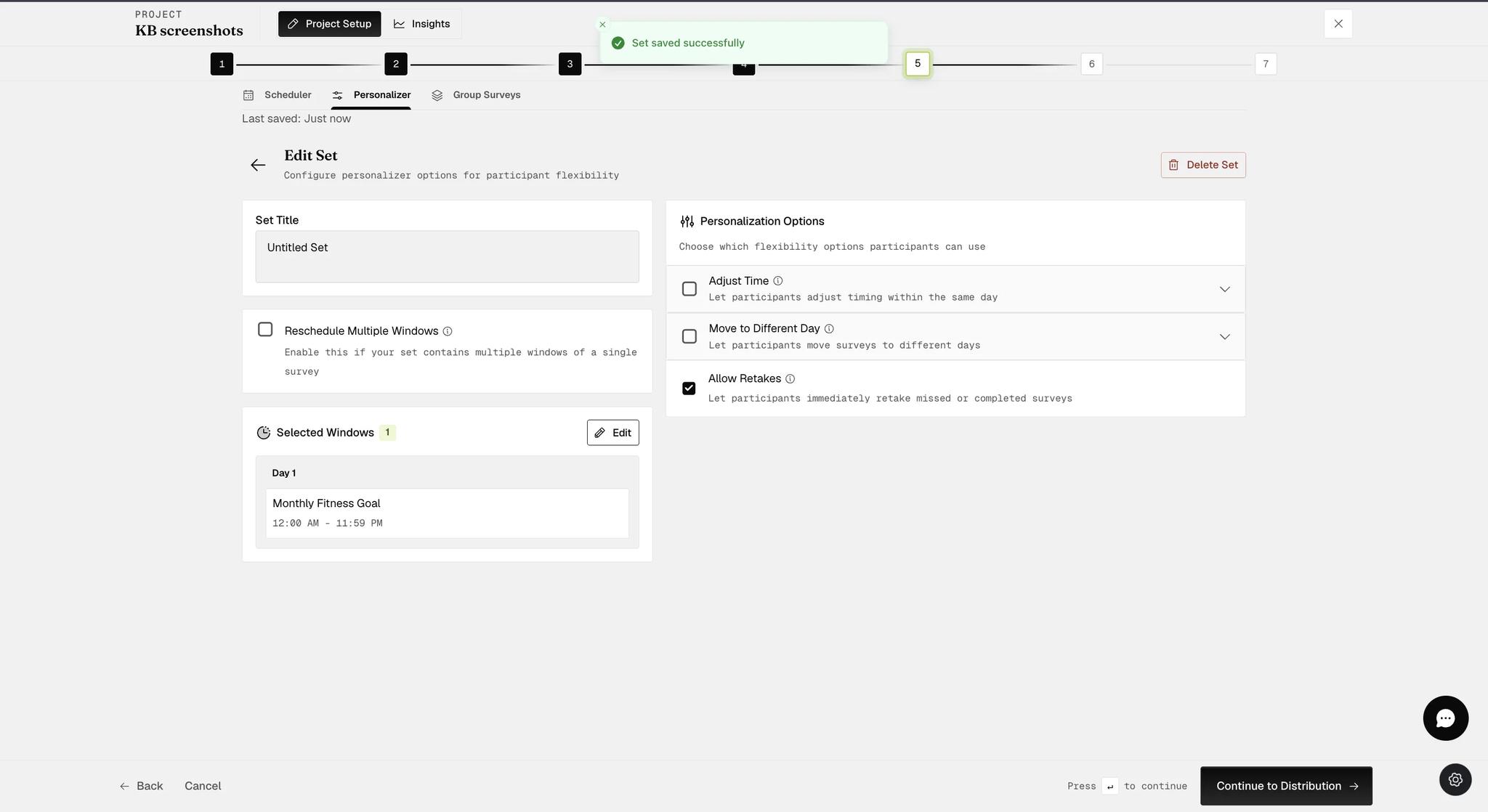
The third option is a plain switch with nothing to configure: "Let participants immediately retake missed or completed surveys." Any survey in the set can be taken again, whether the participant missed it or already finished it.
Retaking a Survey on the Mobile App
Once retakes are on, the participant opens their study, finds the survey, and taps the three dots beside it. Retake Timeslot appears in the Experience Options menu.
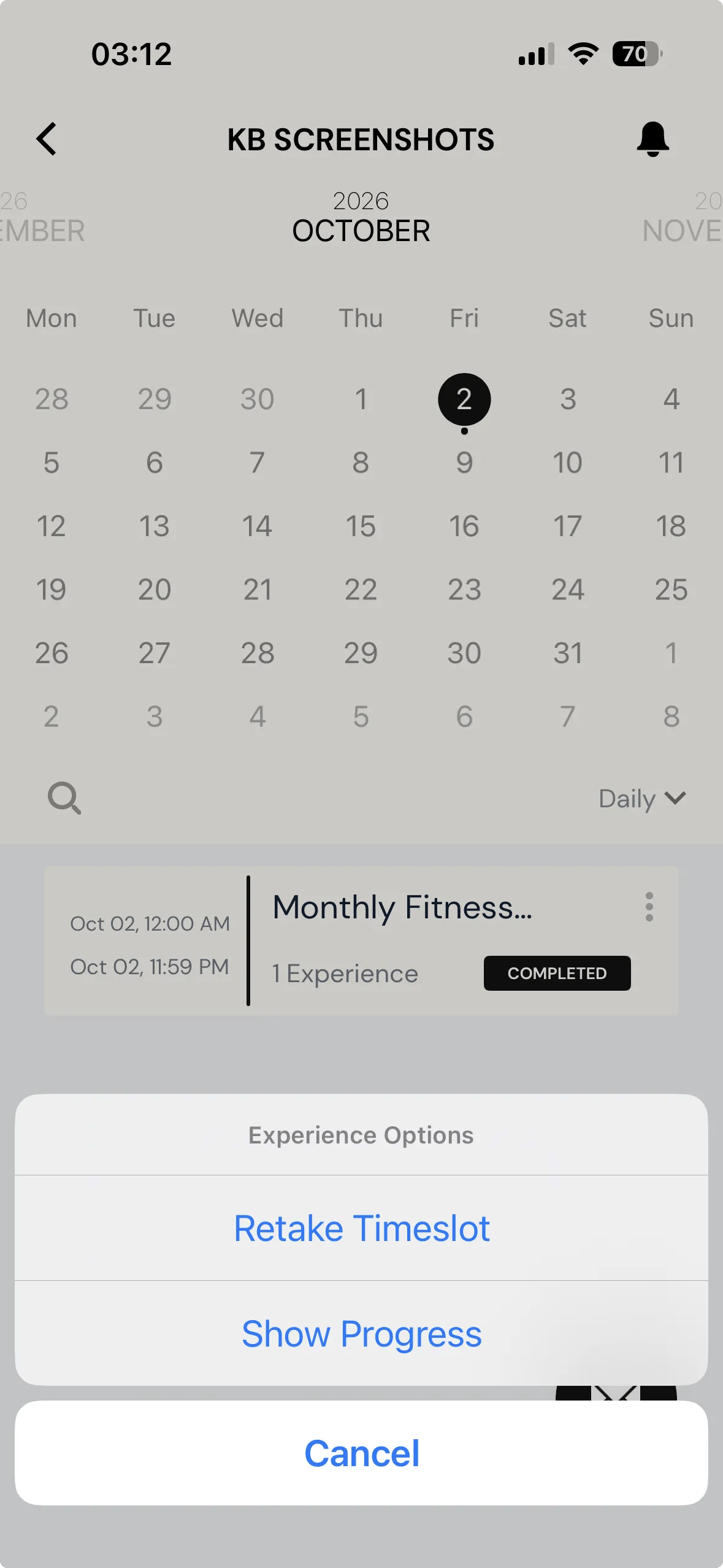
The survey in the example is marked COMPLETED and can still be retaken, which is the point of the setting: it covers surveys a participant finished as well as ones they missed.
If you have further inquiries, please contact help@expiwell.com