Audio & video automated transcriptions
Audio and video capture things a text box does not — tone, hesitation, what someone says when they are not choosing words carefully. Transcription is what makes that analyzable without listening to every recording end to end.
1. Ask for a recording
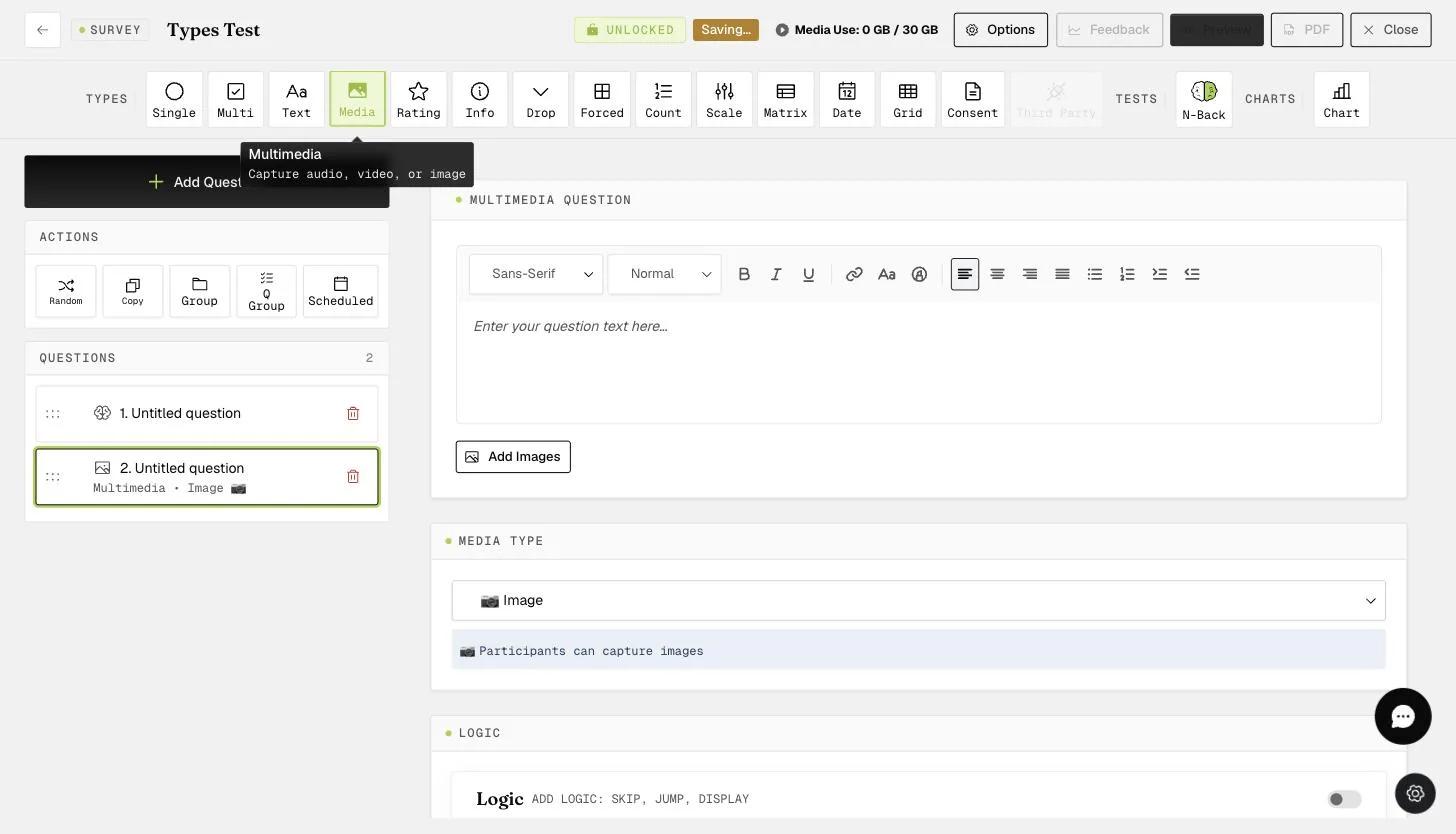
Add a Multimedia question and set its type to Audio or Video.
2. What the participant does
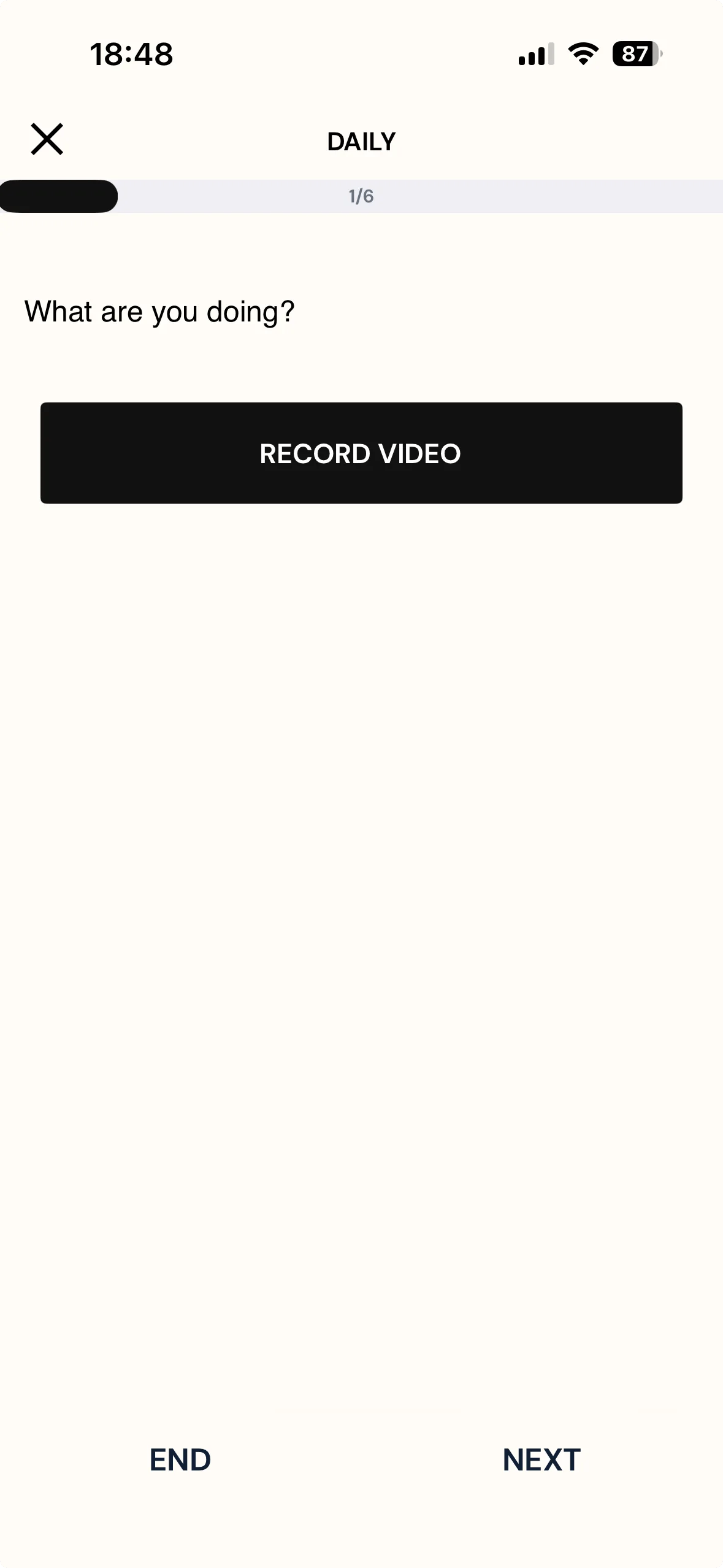
The question shows a single RECORD AUDIO or RECORD VIDEO button, depending on the media type you set. They record using the device's own microphone or camera, and can review it or start again with Clear Media before NEXT moves them on.
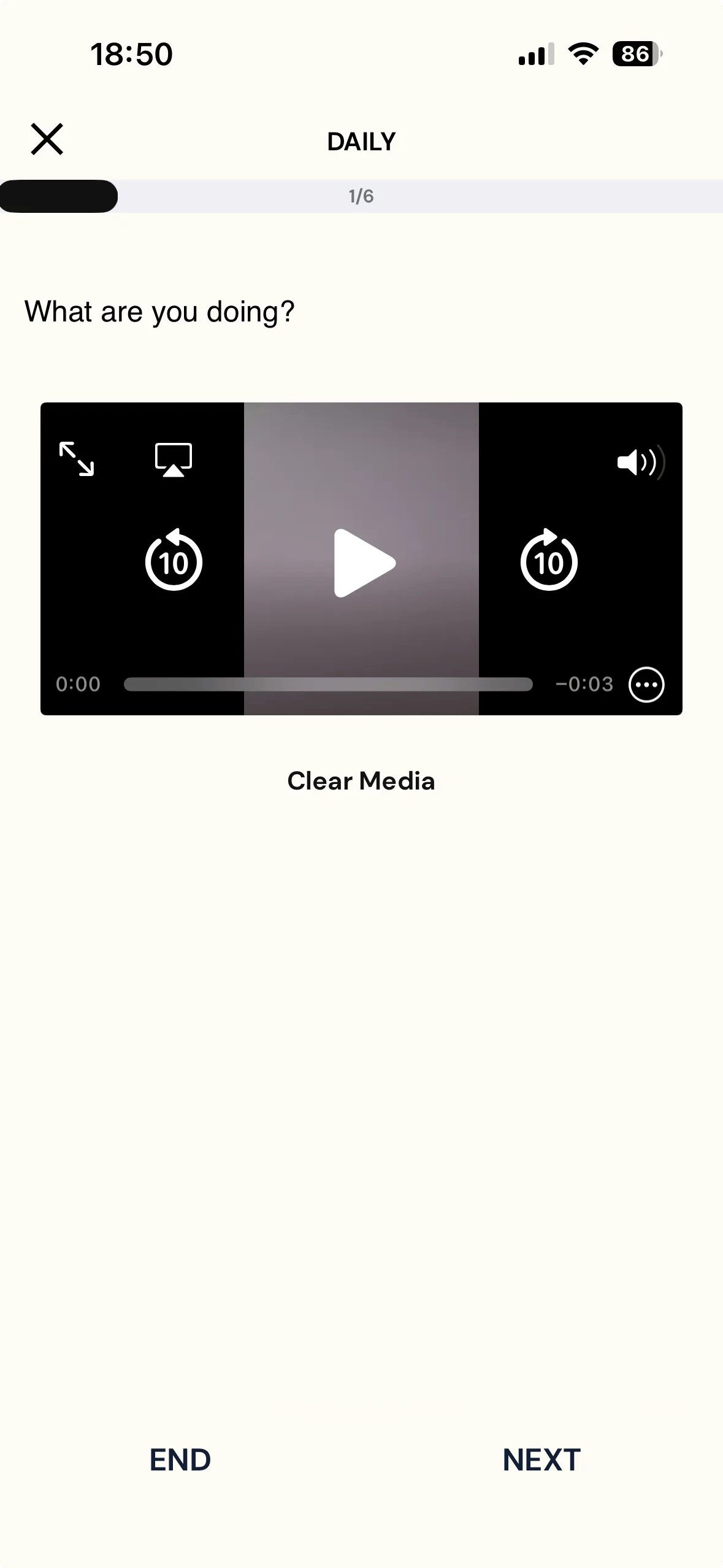
Once something is recorded the button is gone: in its place is a player they can scrub and replay, with Clear Media underneath to discard and start again. NEXT keeps whatever is showing.
3. Where it arrives
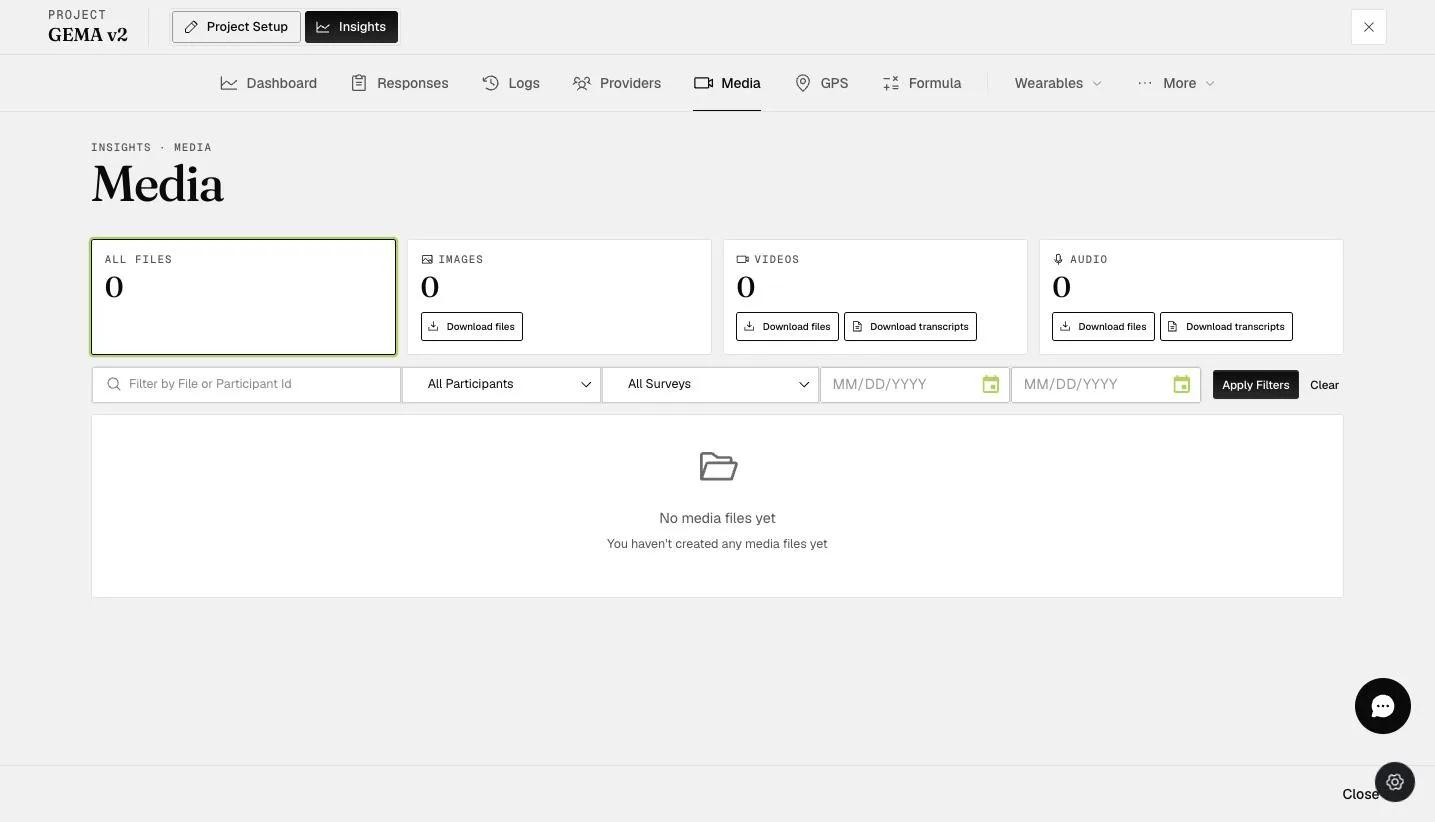
Recordings collect under Insights → Media, in the Audio and Videos cards.
4. Getting the transcripts
It is two steps, and the order matters: generate, then download.
Nothing is transcribed automatically. In the file list, each row has an icon in the Transcription column — clicking it generates that recording's transcript. Do this for every recording you want transcribed.
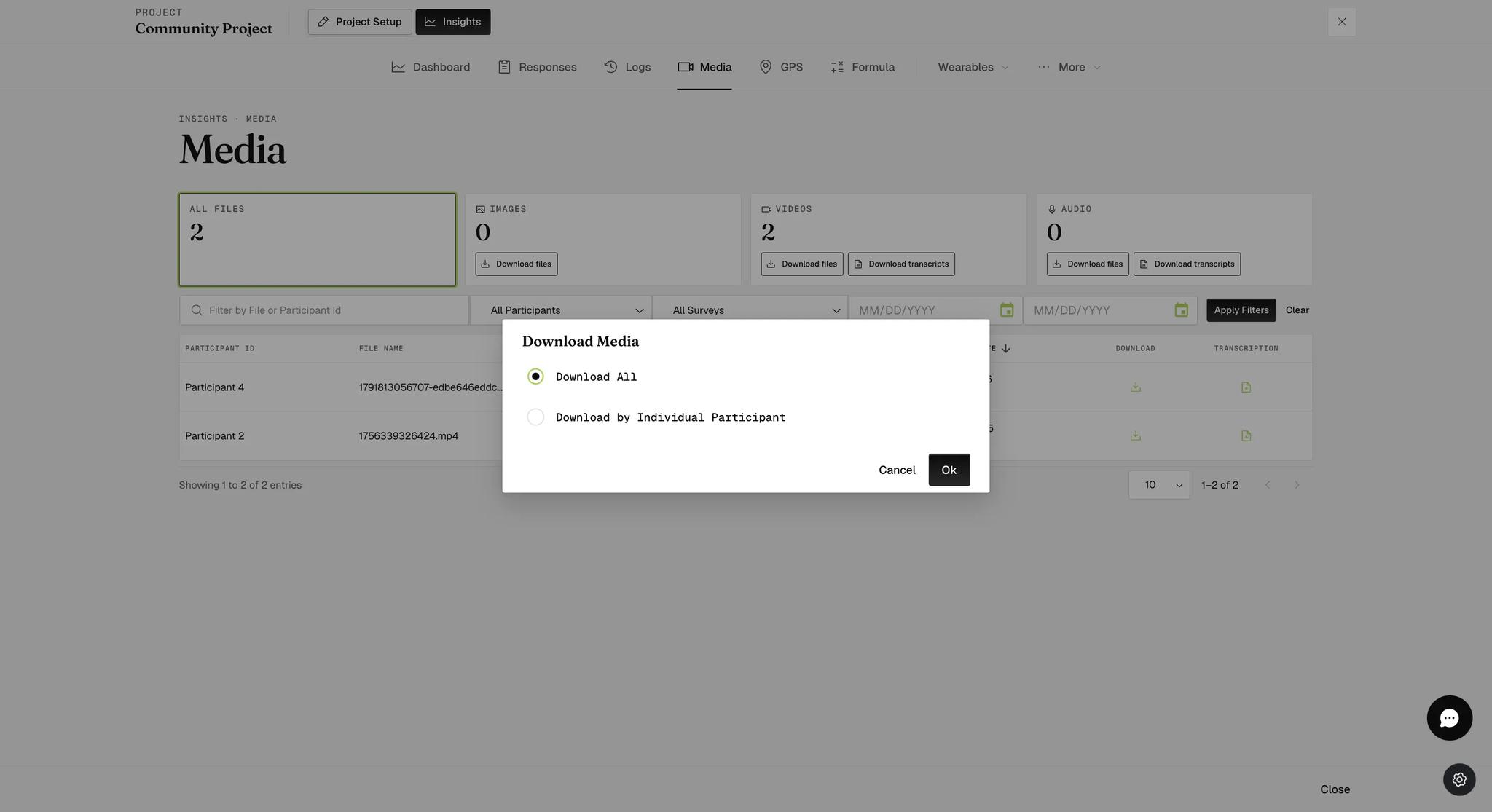
Once they exist, Download transcripts on the Audio or Videos card collects them. It opens a Download Media dialog first, asking whether you want Download All or Download by Individual Participant. Choose, then Ok.
What arrives is a zip of plain text files, one per recording, named for the
participant, survey, date, time and question —
P4_Daily_12_10_2026_06-56_PM_Q1.txt. Open them in any text editor.

The transcript is continuous prose — no timestamps, no speaker labels.
"No Transcriptions Available" means there is nothing to download, not that the download failed. Two things to rule out before reporting a problem.
Silence transcribes to nothing. A recording with no speech in it produces
no transcript at all, and does not count towards the download. Three videos in
a project where only one had someone speaking returns Count: 1 transcriptions.
Transcription is not instant. A recording made moments ago may not have been processed yet. Give it a few minutes and ask again.
Transcription needs Premium or above. Collecting the audio and video works on any plan that includes multimedia questions; it is turning them into text that is gated.